VideoToTranscript

Convert Video to Transcript Text in Minutes

Upload a video or audio file, or add a YouTube URL, then create a clean transcript with timestamps, AI notes, translations, and subtitle-ready text.

VideoToTranscript dashboard preview with upload and transcript tools

Distinguish speakers

Choose whether the transcript should separate different speakers in the conversation.

Drag & drop your video or audio here

Supports common video and audio formats up to 250MB

100+ languages
Timestamped output
AI tools
Private upload

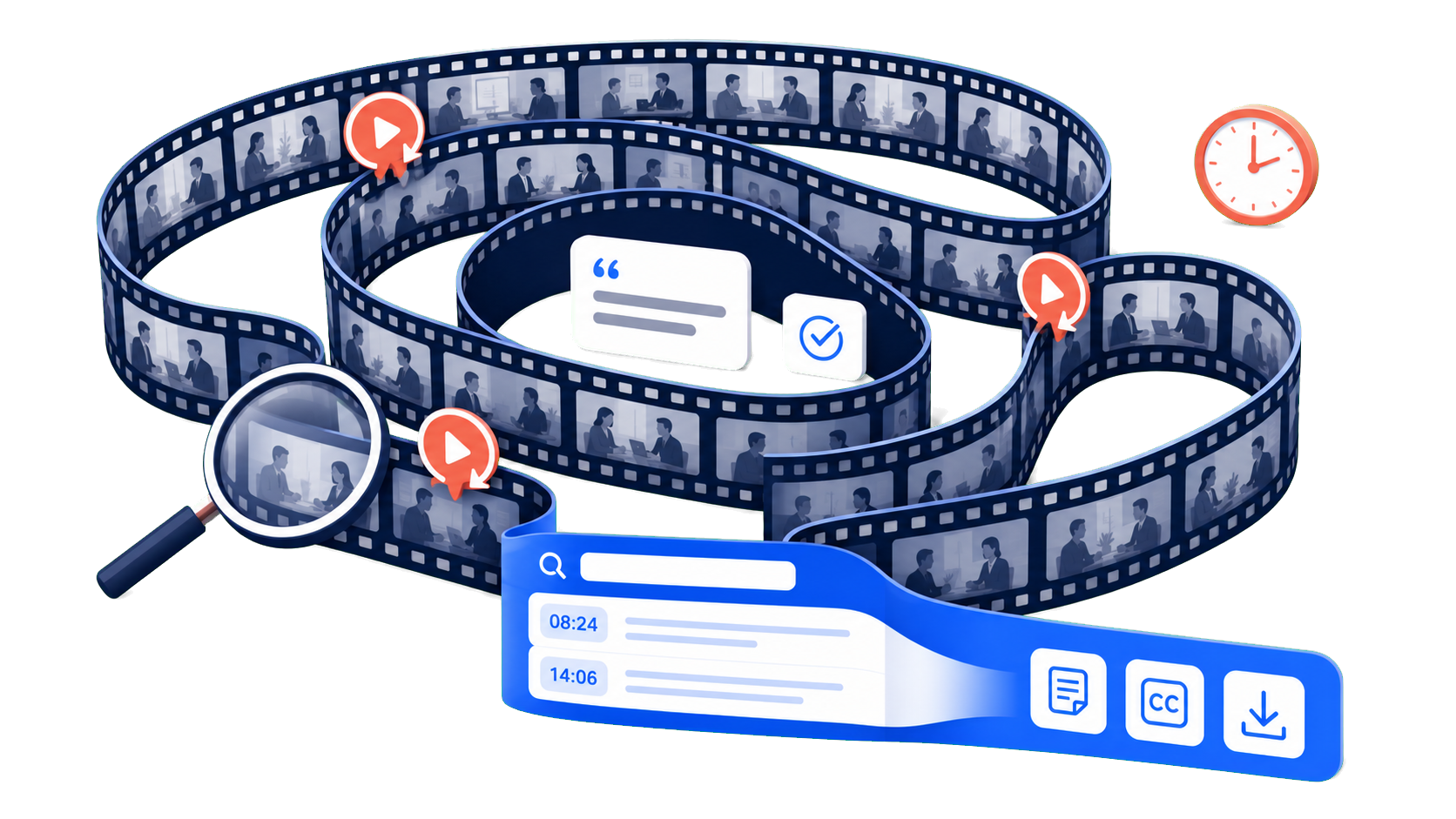
The Problem: Valuable Video Content Is Hard to Use

Videos often contain the exact details people need, but finding a quote, checking a decision, or turning a recording into notes can mean replaying the same sections again and again.

Video to Transcript solves this by turning spoken video into searchable text, so lectures, interviews, webinars, meetings, and training videos become easier to review and reuse.

  • Search a recording without replaying every minute.
  • Turn spoken details into notes, captions, and documentation.
  • Keep quotes and decisions tied to the source video.
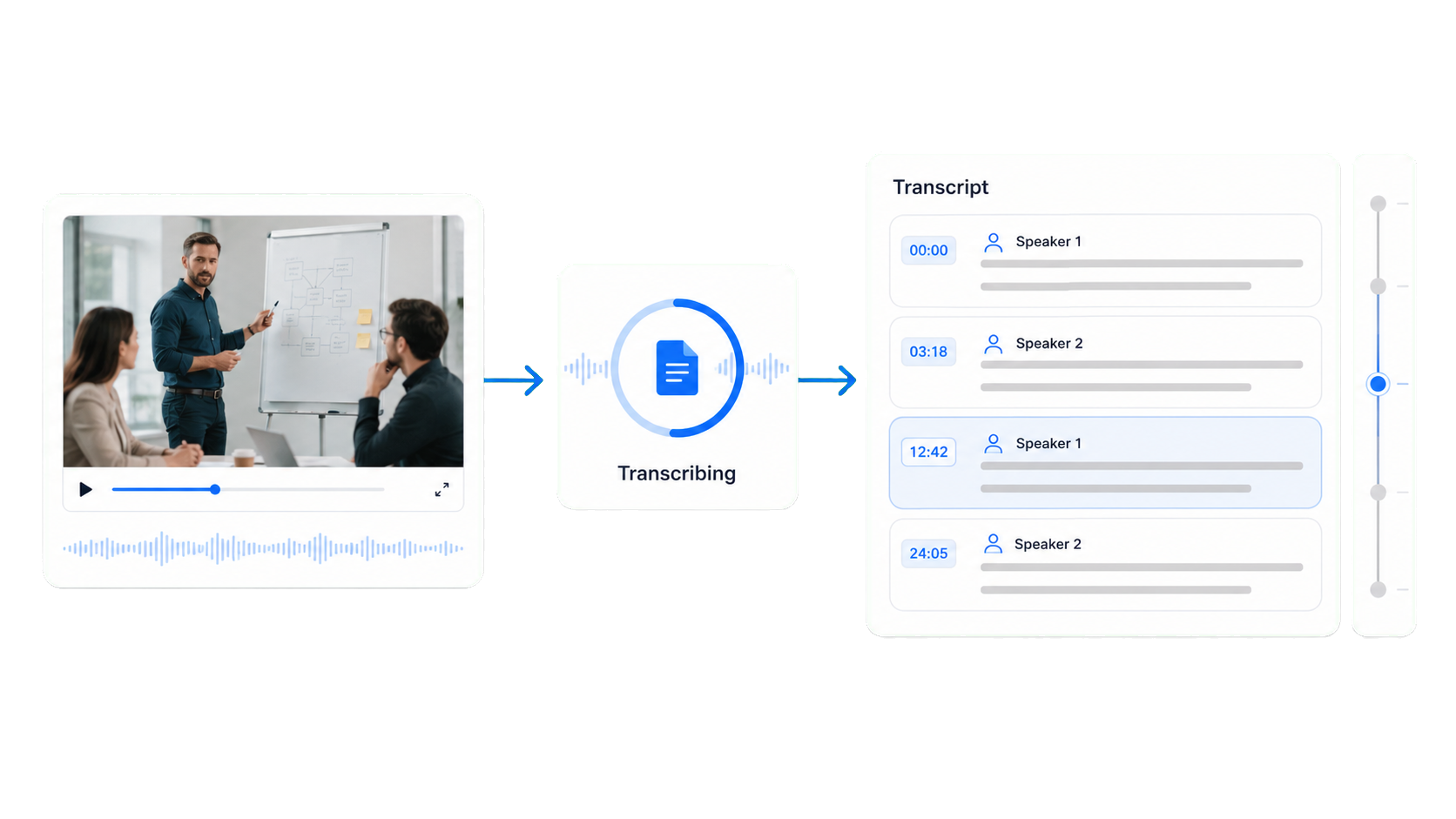
Visual summary of turning hard-to-search video content into reusable transcript text
Video transcript result page with timestamped text and review tools

What This Video to Transcript Tool Does

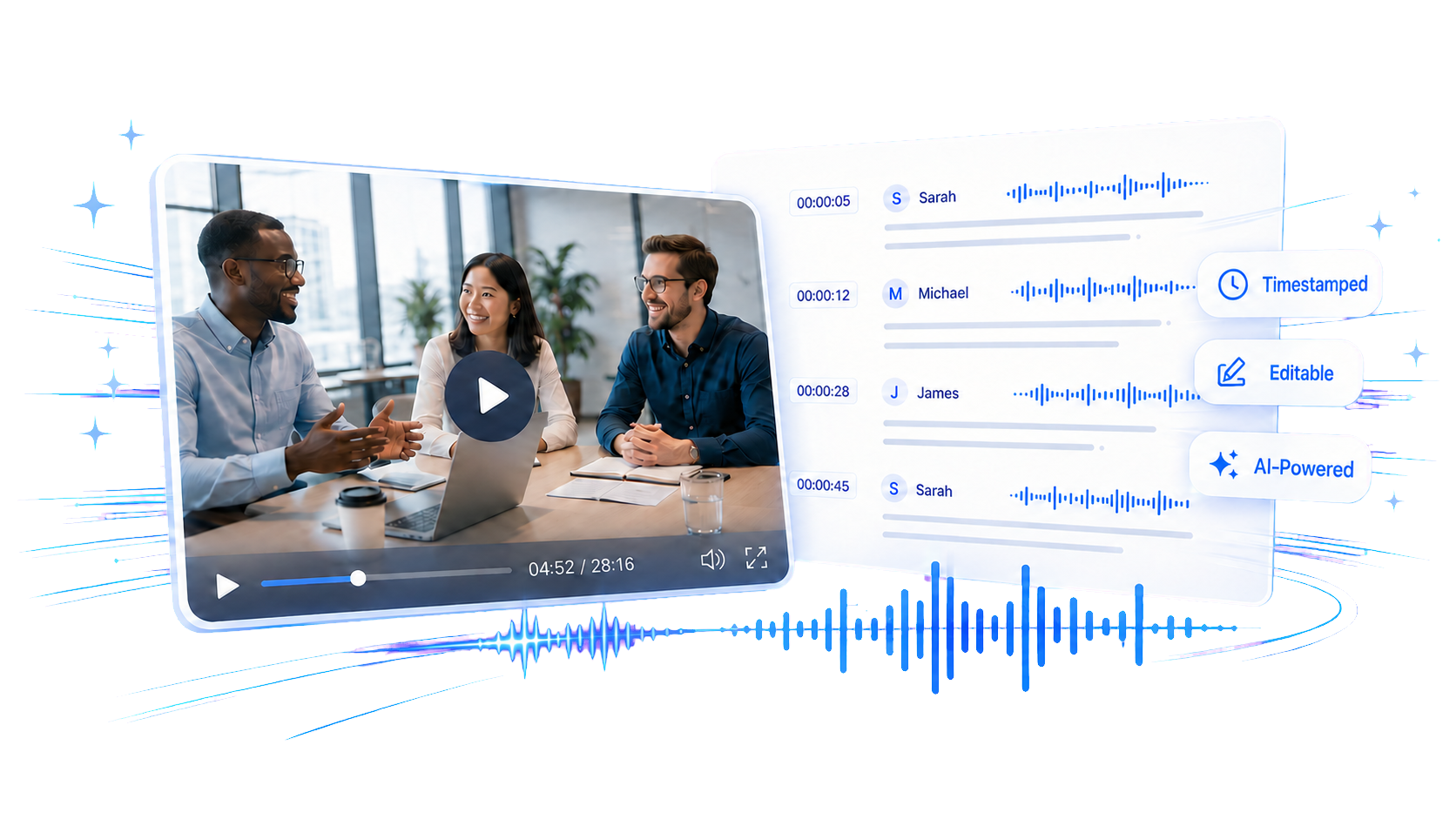
Video to Transcript is an AI tool that turns spoken video into structured, timestamped text, so you can check the source video, follow the conversation, and find important moments without replaying the full recording.

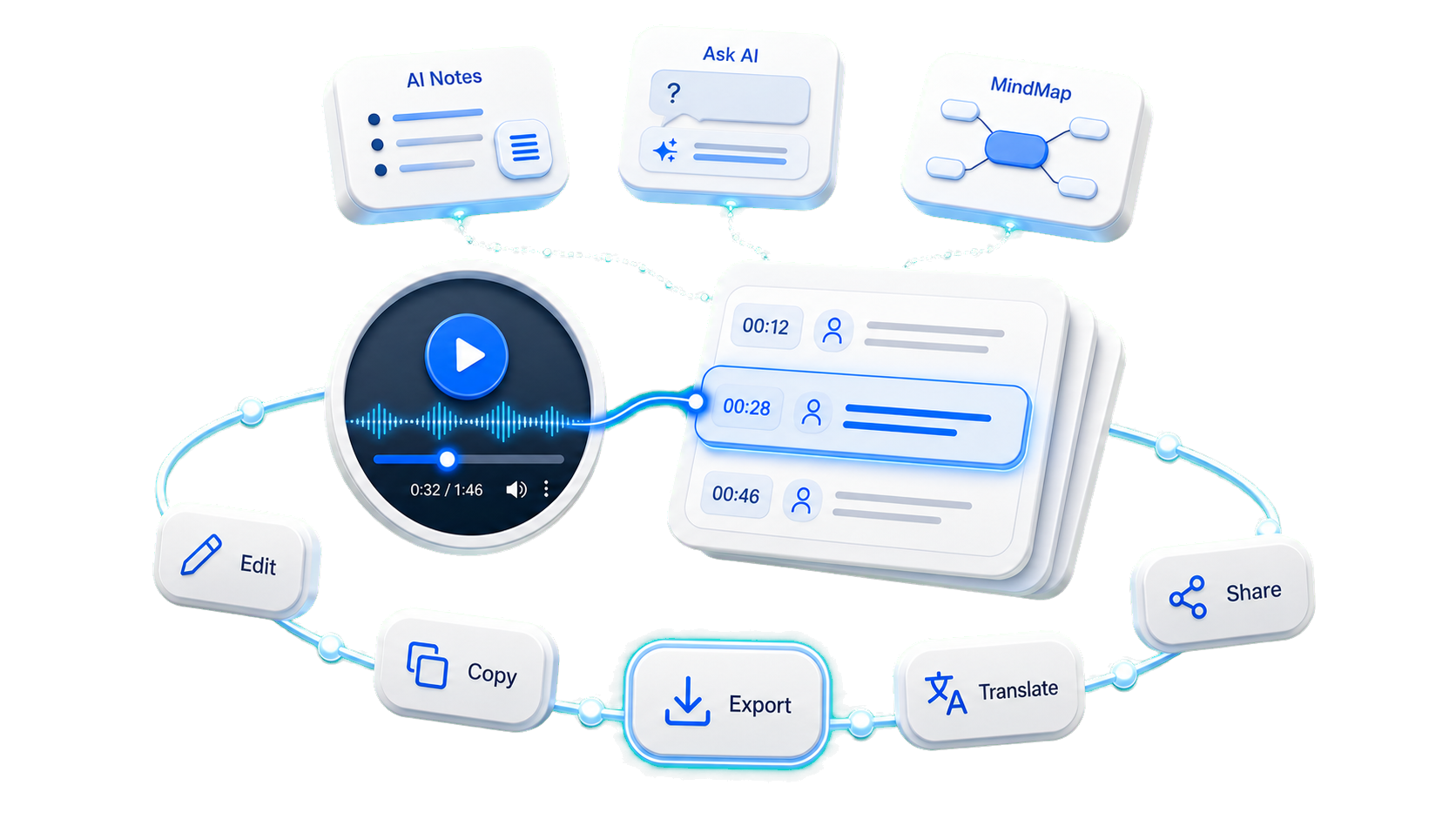
After transcription, the result page helps with speaker names, AI notes, translation, MindMap, and export. Whether users call it a video to text converter, video transcriber, or AI video transcription tool, the goal is usable text that can move outside the player.

Why Use Video to Transcript

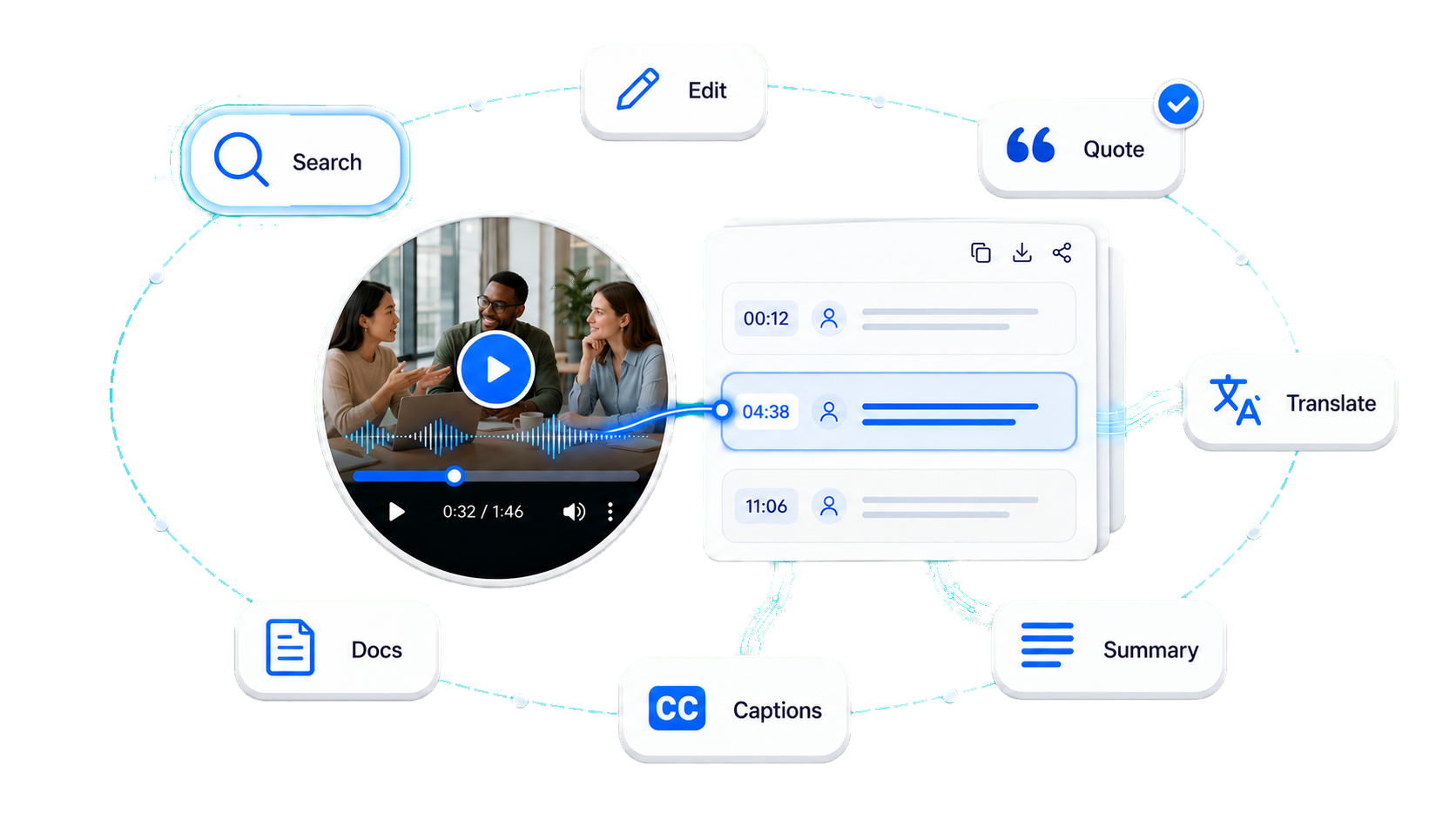
Use Video to Transcript when you need more than rough captions. It gives you text that is easier to search, edit, quote, translate, summarize, and turn into captions or documentation.

It also keeps the transcript connected to the source video with timestamps, which makes review faster and helps important details stay tied to the original recording.

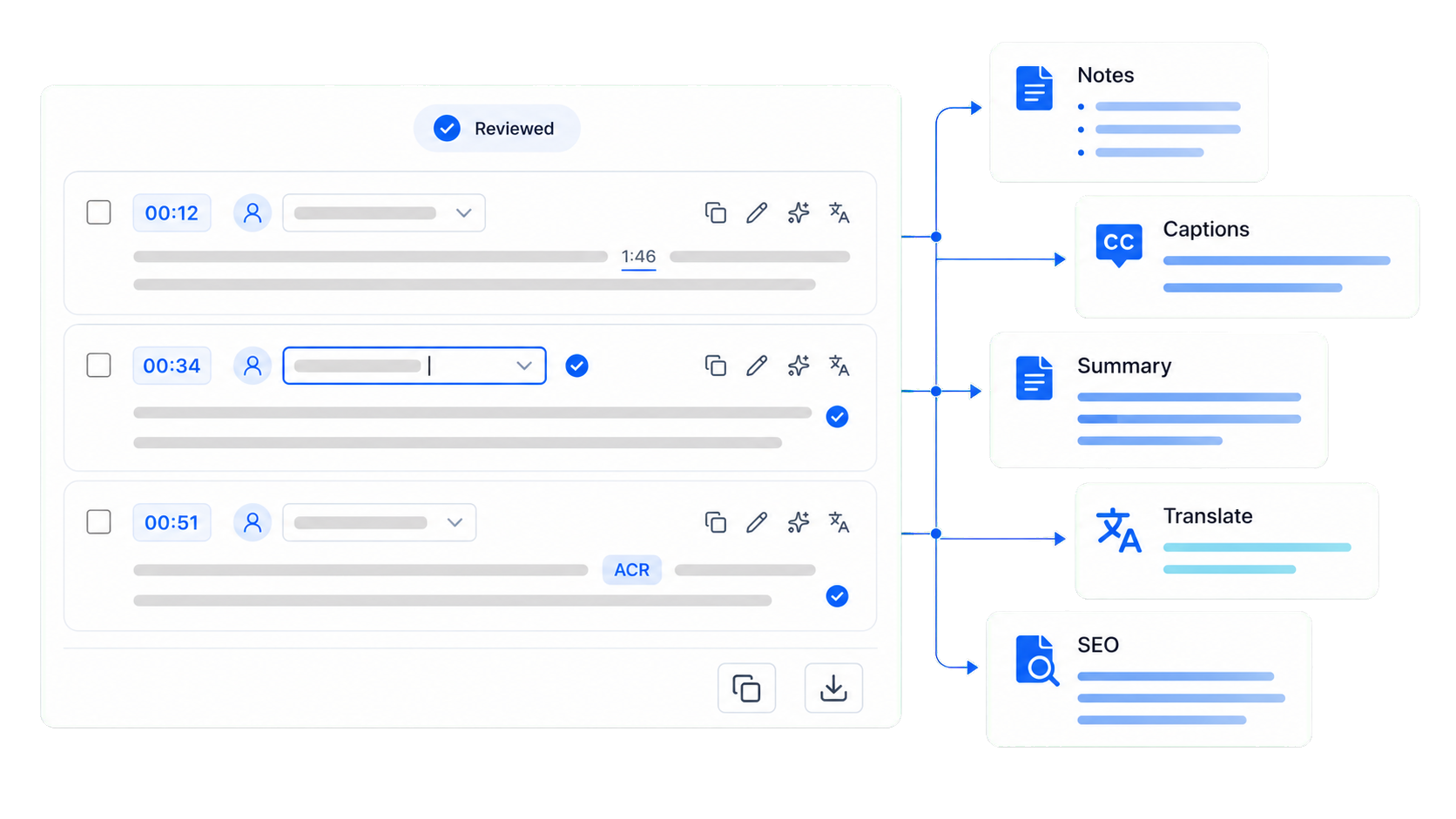
Visual summary of using Video to Transcript for notes, captions, translation, and documentation

How to Transcribe Video to Text With Video to Transcript

Step 1

Upload a File or Add a Video Link

Start with the video source you already have. Upload a local video file, enter a video URL, or open a demo video, then review the transcript before deciding how to reuse it.

SourceBest For
Video filesMeetings, demos, webinars, lessons, interviews
Video linksTutorials, creator videos, public lessons
Demo videosTrying the tool before uploading
Step 2

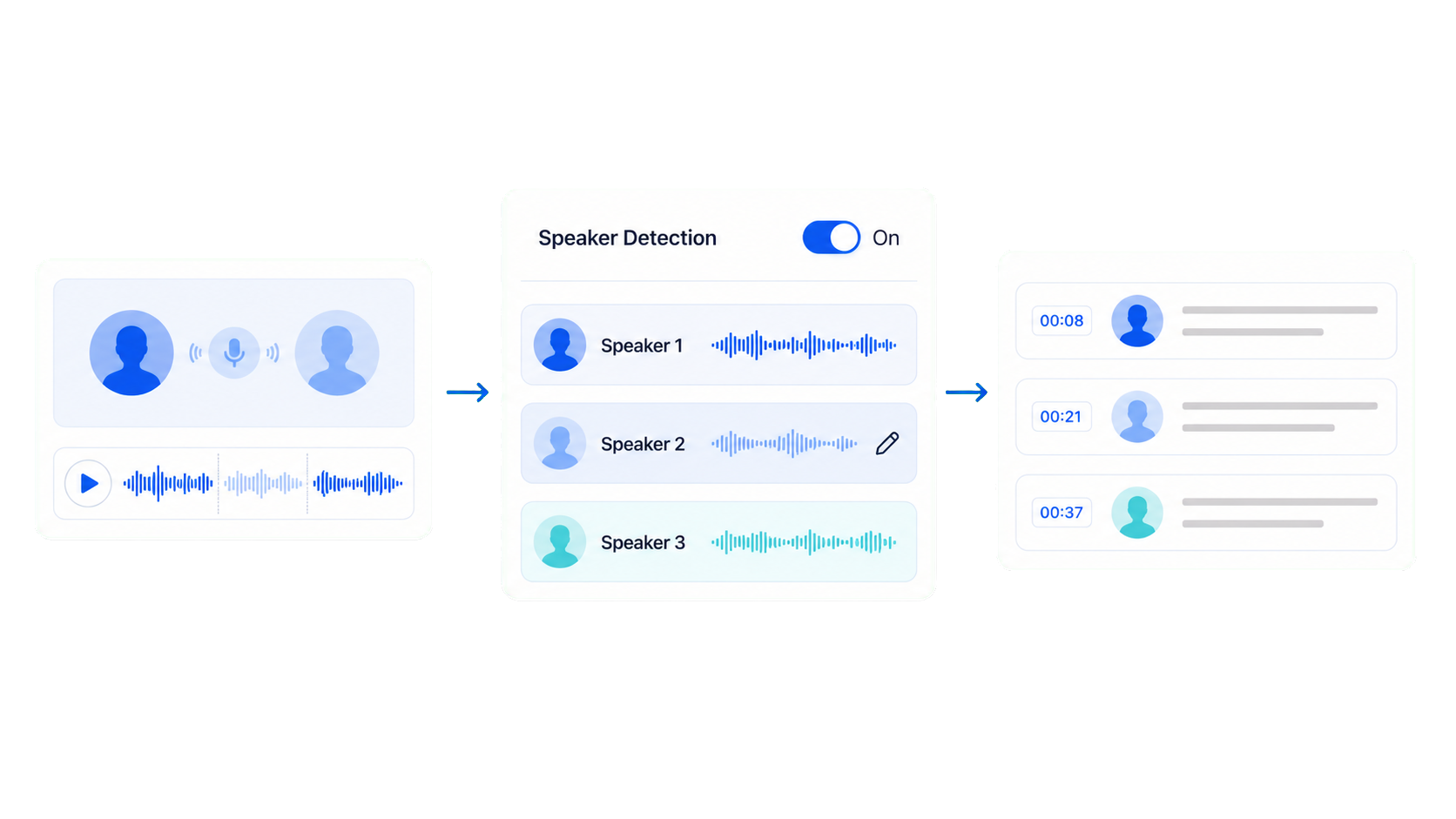
Choose Speaker Detection

For interviews, meetings, webinars, and training videos, choose whether to distinguish speakers. Speaker detection gives you a better starting point, and the result page should let you edit speaker names before exporting.

Speaker detection settings for a video transcript
Step 3

Generate Transcript From Video

The tool processes the source and creates a timestamped transcript. A practical result should show what was said, when it was said, who said it when speaker detection is enabled, and which parts are ready to reuse.

For longer recordings, the transcript view makes review faster than replaying the full video.

Generating a timestamped transcript from a video
Step 4

Review and Reuse the Transcript

AI video transcription saves time, but review still matters. Check names, numbers, timestamps, acronyms, product terms, quotes, and sections with background noise. Once the transcript is reviewed, use it for captions, documentation, summaries, or SEO content.

Reviewing and reusing a completed video transcript

Start With One Video

Upload a file or add a video link. Start for free without logging in, then turn the transcript into usable notes, captions, or export-ready text.

A good video to transcript process starts with one source and ends with text you can actually use.

Transcript Tool Highlights

Timestamped Transcript View

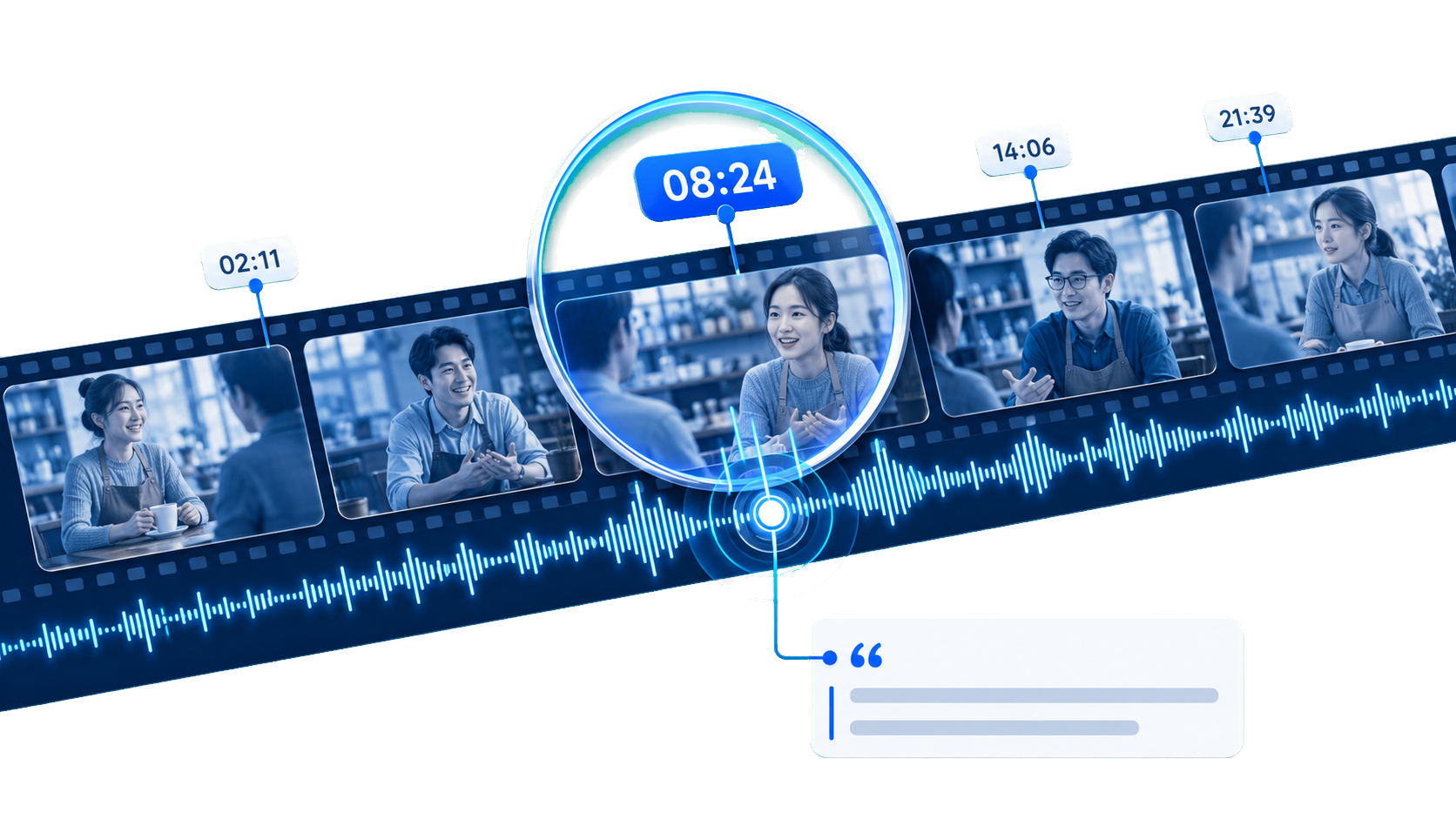
Timestamps make a transcript easier to audit. Click a segment to jump to the matching point in the video, verify a quote, and keep the text connected to the source.

This is one of the main reasons a video to transcript tool is more useful than a plain block of generated text.

Timestamped transcript segments linked to the source video

Speaker Editing

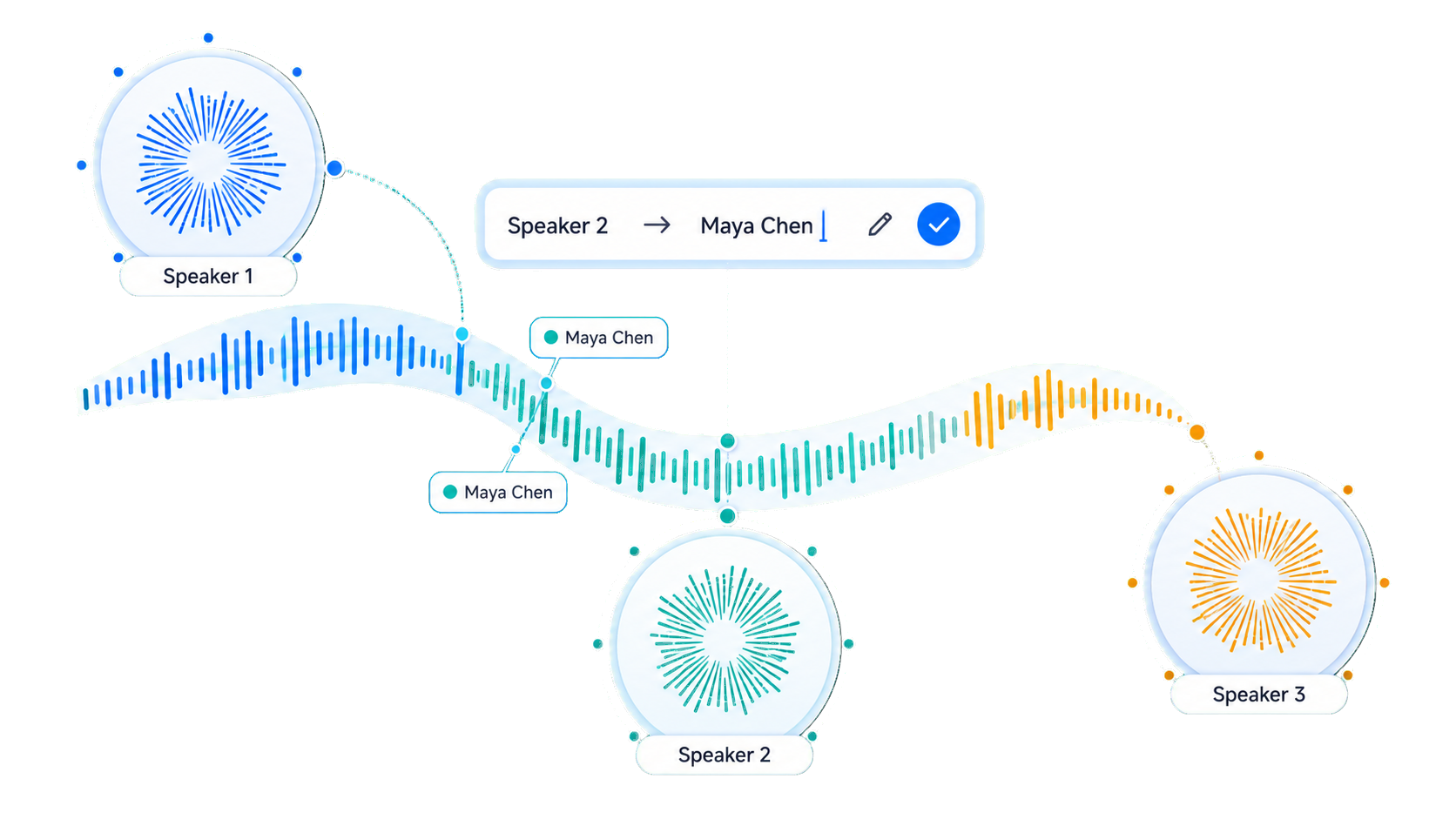
Edit speaker names so interviews, panels, meetings, and training videos are easier to read. This is especially helpful when several people speak in the same recording.

Speaker name editing in a transcript

AI Notes and Ask AI

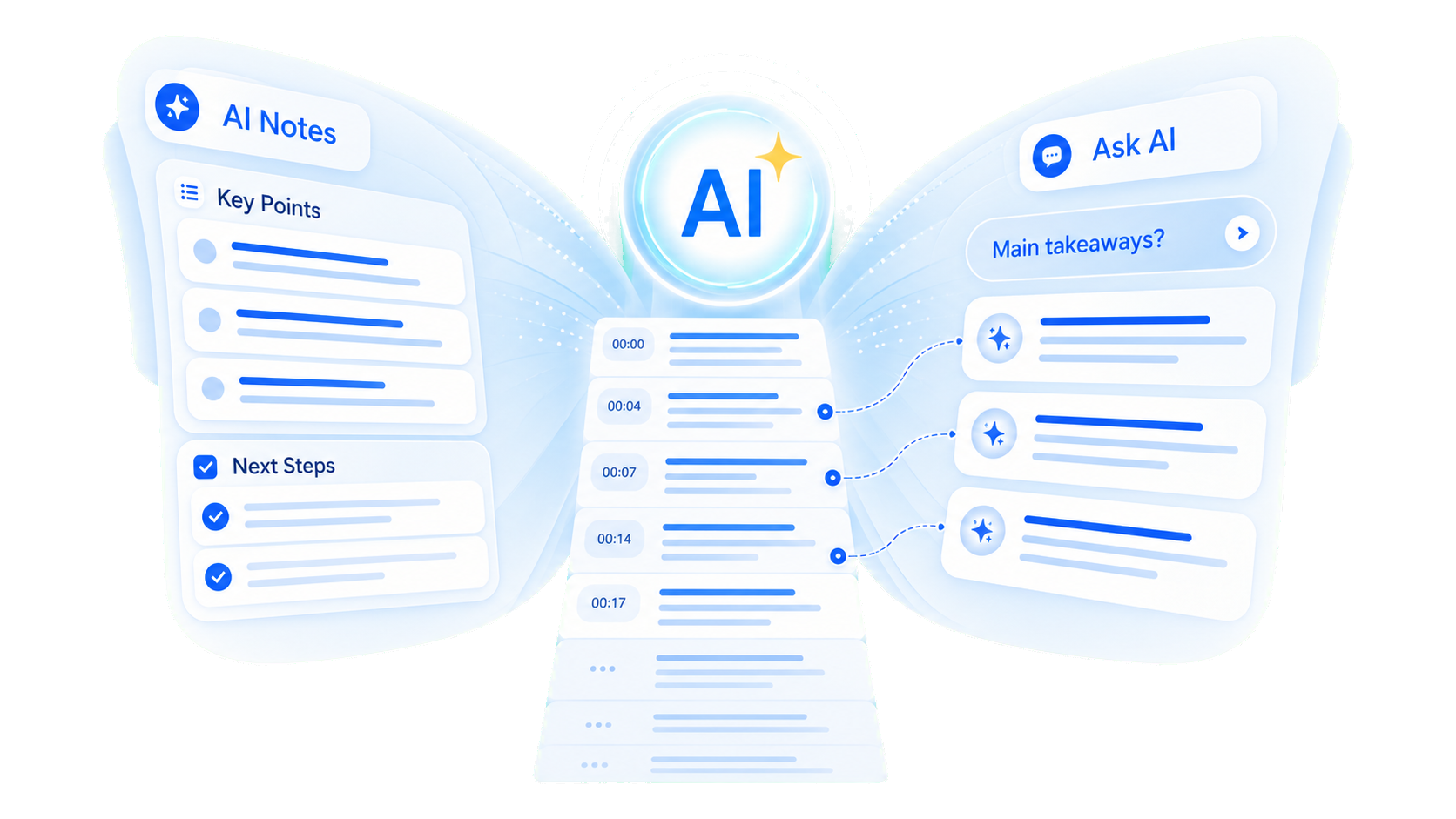
AI Notes turn long recordings into summaries, key points, and next steps. Ask AI lets you query the transcript with questions like "What are the main takeaways?" or "What action items were mentioned?"

AI notes and question answering for a video transcript

MindMap and Translation

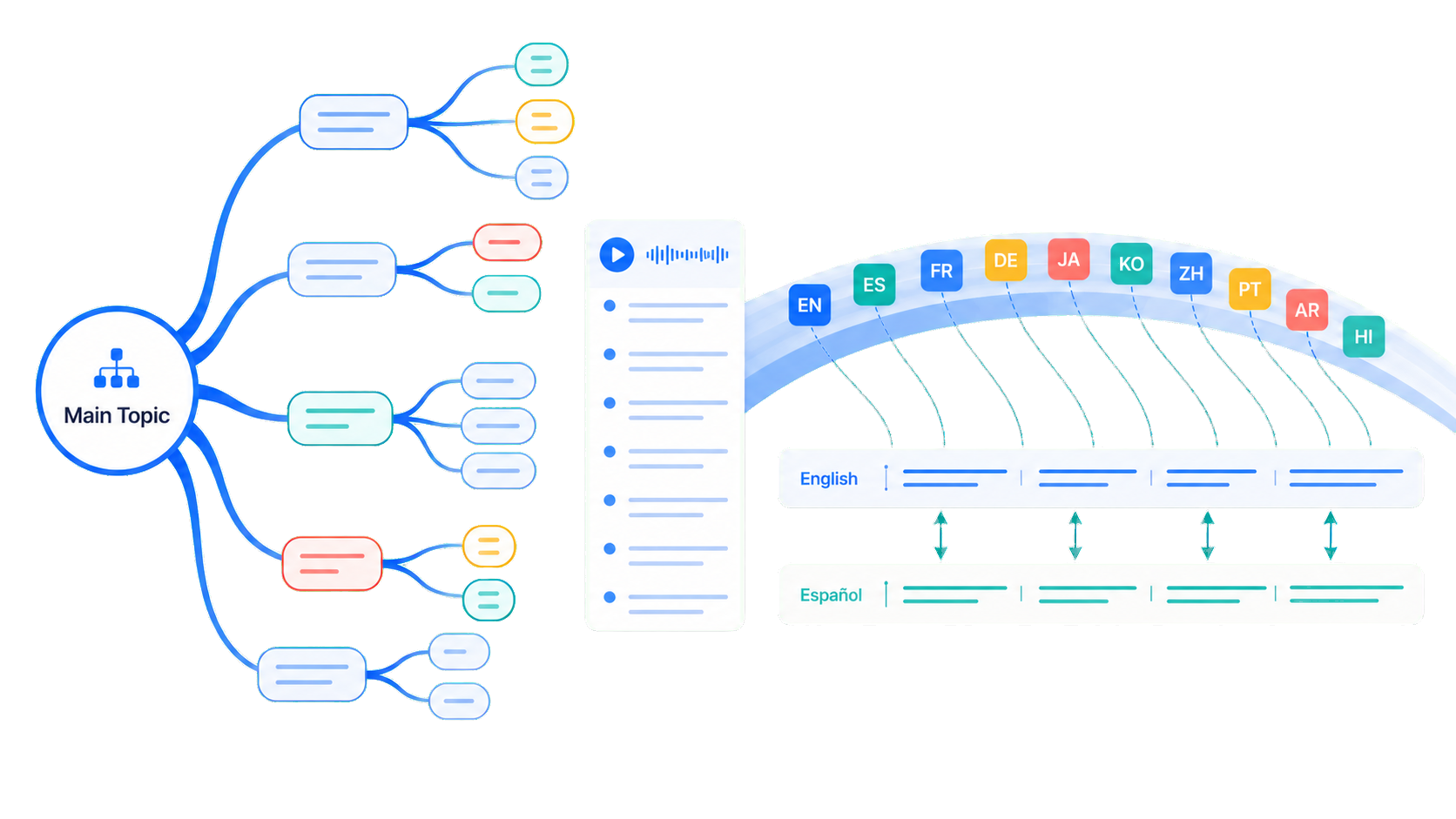
MindMap helps turn a long transcript into a topic structure. Translation helps prepare transcript sections for multilingual review and subtitle drafts. Product language support includes English, Spanish, French, German, Japanese, Korean, Simplified Chinese, Portuguese, Arabic, Hindi, and more supported languages.

MindMap and translation tools for transcript review

Copy, Download, and Export

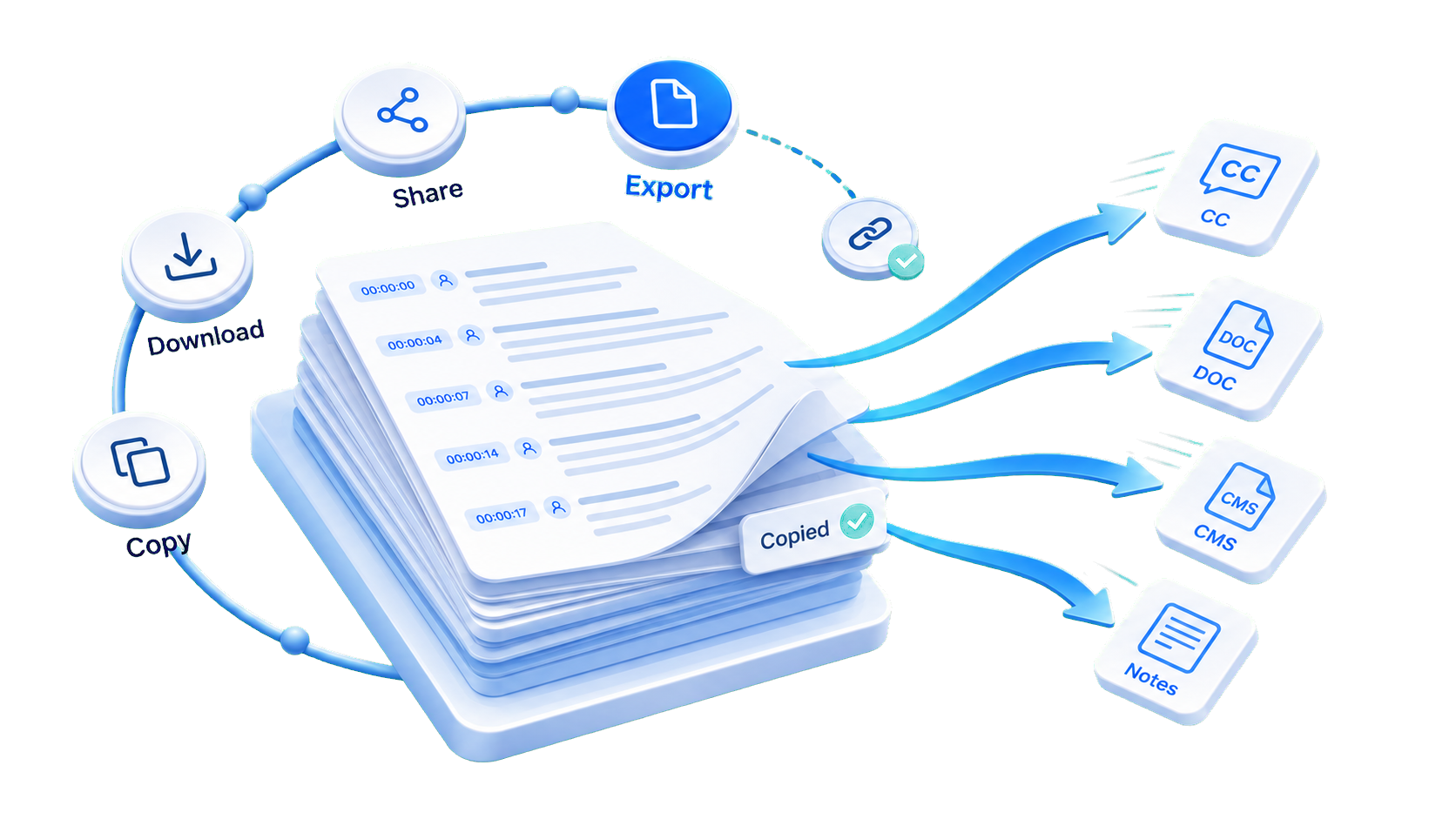
A useful video to transcript tool should not trap the result inside the product. Copy text, download transcript content, and move the output into captions, documents, CMS drafts, or team notes.

Copy, download, and export options for transcript text

YouTube Video to Transcript

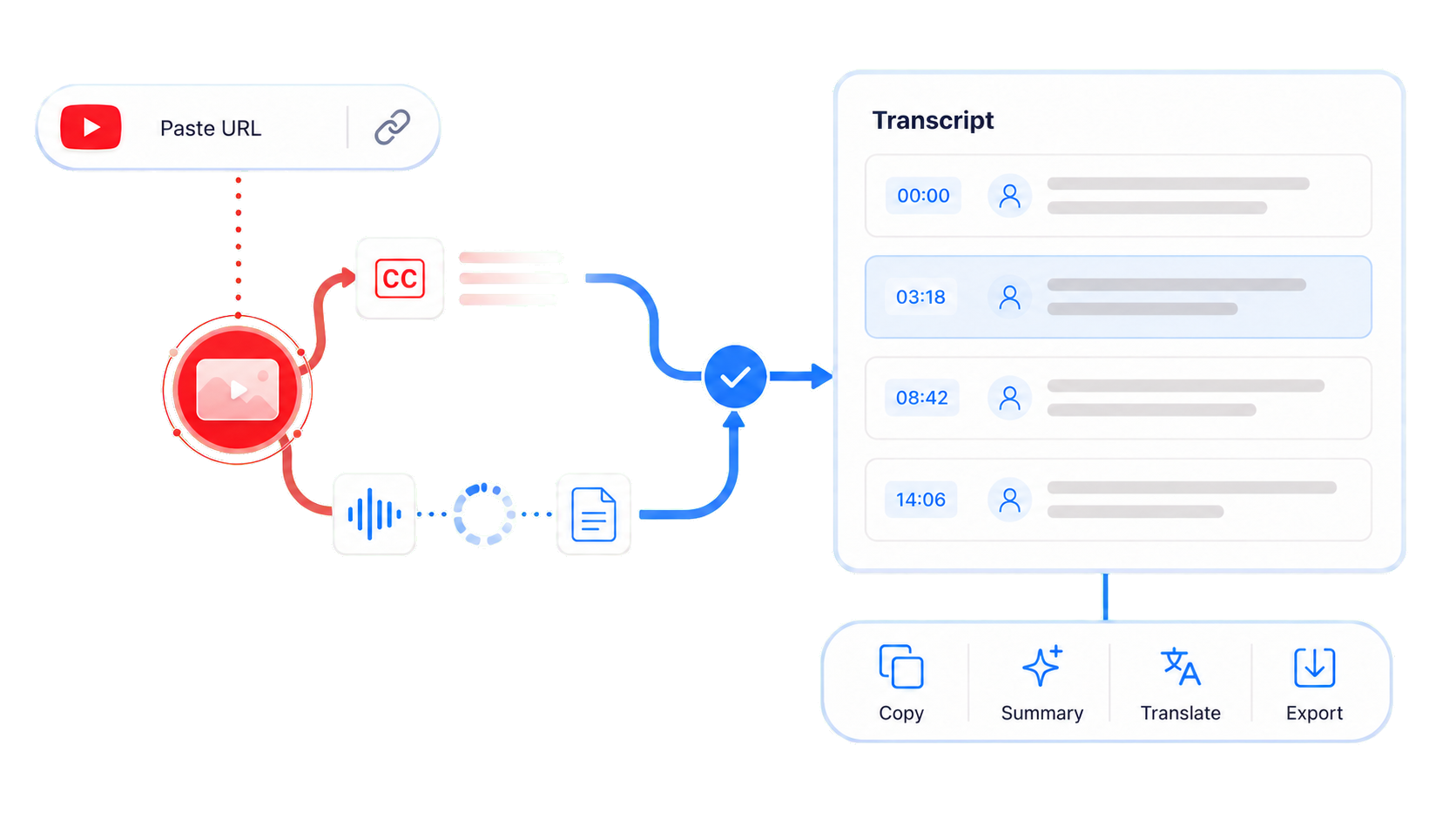
Add a YouTube URL to generate or extract a transcript. The tool can work with available captions or process supported videos when captions are not available.

People who search for transcripts from online videos usually want readable text they can use outside the original player.

YouTube video to transcript URL input and result preview

Video to Transcript Use Cases

Students and Educators

Use video to transcript output to create searchable lecture notes, study summaries, lesson resources, and caption drafts. Students can scan the transcript instead of rewatching a full recording.

Creators and Video Teams

Turn videos into descriptions, show notes, newsletters, clips, content outlines, and captions. A transcript makes it easier to reuse older videos without starting from a blank page.

Marketers and SEO Teams

Use transcript text as source material for landing pages, FAQs, social posts, webinar recaps, and content briefs. The transcript should be edited before publishing, but it gives the team a factual base.

Journalists, Researchers, and Teams

Review interviews, focus groups, customer interview videos, research sessions, meetings, and product demos. Timestamps help verify quotes and decisions.

Accuracy and Review Tips

AI transcription works best when the speech in the video is clear. Use the cleanest video source, reduce echo and background music, avoid overlapping speakers when possible, and review important terms before publishing.

Check:

  • speaker names
  • company and product names
  • numbers, dates, and prices
  • technical terms and acronyms
  • private or sensitive information
  • transcript sections with unclear speech

Transcript, Subtitles, or Video to Text?

These phrases are related, but they are not identical.

NeedBest Output
Search or quote a recordingTimestamped transcript
Make playback captionsSubtitle-ready text
Copy spoken content into a documentVideo to text
Quickly create a draftAI transcription
Repurpose a recordingTranscript plus summary

A transcript is the full text record. Subtitles are timed lines for playback. Video to text is the broader task of turning spoken content into copyable text.

A strong output gives users a clean transcript first, then leaves room for captions and follow-up work.

Privacy When Working With Video Transcripts

Videos can include names, emails, customer details, financial information, private plans, or meeting notes. Review the transcript carefully before downloading, exporting, or publishing anything that may contain sensitive information.

Review before publishingConfirm names, numbers, private details, and quotes before using the transcript publicly.

What Users Use It For

Common ways people reuse video transcripts:

  • Reviewing interviews without replaying the full recording.
  • Turning webinars into summaries and action items.
  • Creating captions and notes from creator videos.
  • Finding quotes inside lectures, demos, and research videos.
  • Preparing content outlines and FAQ ideas from video content.

User Reviews of video to transcript

Examples of how different teams can use video transcripts in everyday work.

★★★★★

"I use this video to transcript tool for recorded seminars and thesis interviews. The timestamps make it much easier to find a quote and add it to my research notes."

MCMaya ChenGraduate Student
★★★★★

"Our team records user interviews every week. Turning those video interviews into transcripts helps us tag themes, compare feedback, and prepare clips for product managers."

EBEthan BrooksCustomer Research Lead
★★★★★

"After editing a video, I need show notes, pull quotes, and captions quickly. I can transcribe video to text, clean up speaker names, and reuse the transcript for promotion."

SMSofia MartinezVideo Producer
★★★★★

"We record onboarding sessions for new hires. The video to transcript output gives us searchable training notes and helps people catch up without watching every minute."

NPNoah PatelTraining Manager
★★★★★

"Interview review used to take the longest part of my day. A timestamped transcript helps me check names, confirm quotes, and keep the final story tied to the source."

RMRachel MorganFreelance Journalist
★★★★★

"I turn lesson videos into captions, summaries, and downloadable notes. The transcript gives students another way to review the material after watching the class."

OGOliver GrantOnline Course Creator

Video to Transcript FAQ

What does video to transcript mean?

It means converting spoken content inside a video into readable text. A video to transcript tool can also include timestamps, speaker labels, and AI tools for reuse.

How do I convert video to transcript text?

Upload a video file or add a video link. Generate the transcript, review the timeline, then use the available tools to reuse or export the text.

How do I transcribe video to text?

Use the file upload or video link option, choose speaker detection if needed, generate the transcript, and review the output against the source media before publishing. This is the practical video to transcript path for files, lessons, interviews, and meetings.

Can I use this as a video transcript generator?

Yes. The tool creates a transcript from supported sources and gives you a result page for checking and reusing the text.

Is this video to transcript tool free without login?

You can start for free without logging in. Upload a supported video, add a video link, or try a demo video, then review the transcript on the result page. Free access may have usage limits depending on the live product settings.

How to make a video transcript?

Start with clear speech in the video, upload the file or use a video link, generate the transcript, check key details, then export or copy the text.

How to create a transcript from a video?

Use a tool that processes the spoken track in the video, creates timestamped text, and keeps the transcript tied to the source video.

Can I get transcript from video links?

Supported links can use the video link to transcript option. The tool can use available captions or process supported videos when caption data is not available.

How do I get a transcript of YouTube video content?

Enter a YouTube URL, process the video, then use the transcript outside the original player. For supported URLs, this tool turns online video content into reusable text.

How to download video transcript text?

If the tool produces a transcript, review it first, then use the available copy or download option. Native caption download steps depend on the original platform and caption availability.

Is AI video transcription accurate?

Accuracy depends on speech clarity, background noise, accents, overlapping speech, and terminology. Review important quotes, names, numbers, and technical terms.

Can I make subtitles from the transcript?

Yes. A reviewed timestamped transcript can be prepared for subtitle formats such as SRT or VTT, but line breaks and timing should be checked before publishing.

VideoToTranscript

Convert video to transcript text, summaries, subtitles, translations, and reusable notes with AI review tools.

Language
© 2026 VideoToTranscript. All rights reserved.AI video to transcript and video transcription for creators, students, researchers, and teams.