
How to Download a YouTube Transcript as a Text File
You can download a YouTube video transcript by opening the video’s transcript panel, copying the text, and saving it in the format that matches your next task. YouTube’s built-in transcript is useful for a quick excerpt, but it may include timestamps, awkward line breaks, or recognition errors that need to be cleaned up first.
This guide explains how to copy and save a transcript, how to handle videos without a usable transcript, and how to prepare the text for notes, subtitles, research, or publishing.
Before downloading or republishing someone else’s transcript, make sure you have the right to use the video and its spoken content. Saving a transcript for personal reference is different from publishing or distributing it.
Copy the Transcript from YouTube
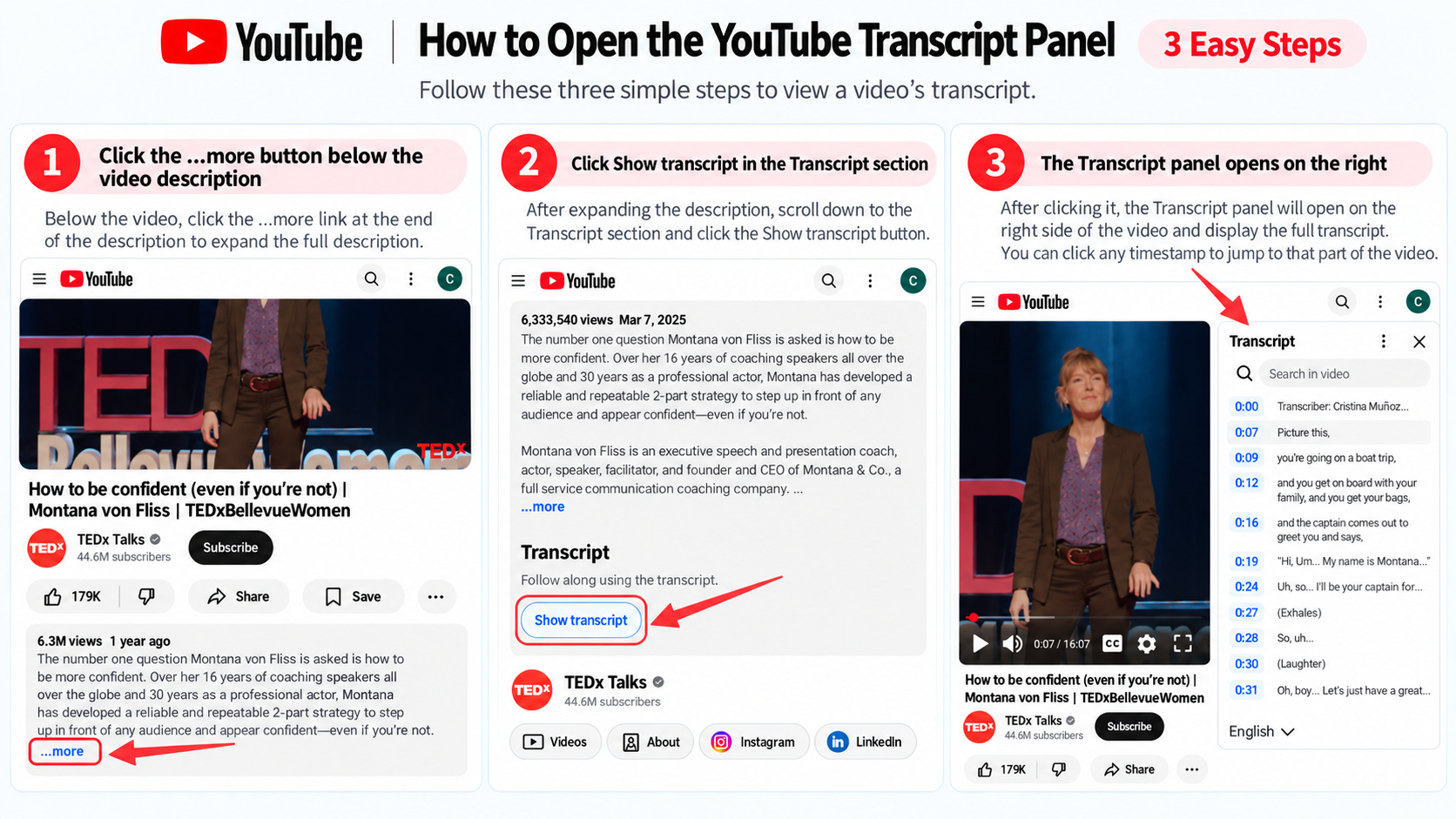
If the video exposes a transcript, this is the quickest free method.
- Open the YouTube video in a browser.
- Expand the video description or additional options.
- Find and open the transcript panel.
- Select the language or caption track if more than one is available.
- Copy the full transcript or only the section you need.
- Paste it into a text editor or document for cleanup.
The exact button names and location can vary by device, account, and YouTube interface version. If you cannot find a transcript option, the video may not have captions available, or the option may be hidden in the current layout.
Viewer access and creator downloads are different
If you are watching someone else’s video, the transcript panel usually lets you view and copy the available text, but it may not provide a direct TXT, SRT, or VTT download. Video owners and people with access to the channel’s YouTube Studio may have additional caption-management options, including downloading caption files. Do not assume that an option available to a channel owner will also be available to an ordinary viewer.
Remove timestamps before saving plain text
YouTube may display a timestamp beside each transcript section. Timestamps are useful when you need to return to the original video, but they make a transcript harder to read as an ordinary document.
After pasting the transcript, remove timestamps only if you do not need them later. Keep a raw copy first so you can still locate the original passage. Then add paragraph breaks based on topic changes instead of leaving every caption line as a separate paragraph.
Save a YouTube Transcript as a Text File
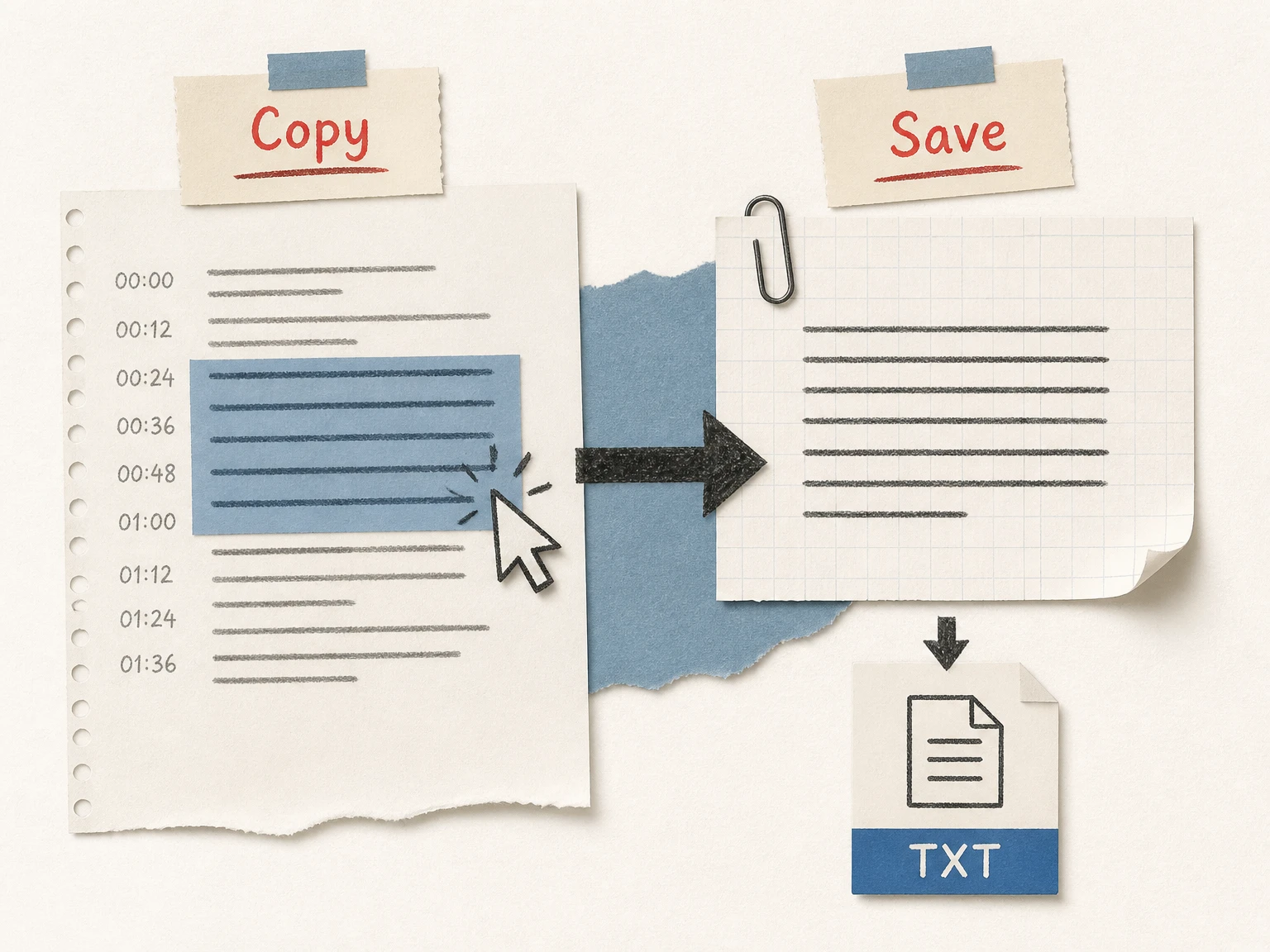
For many viewers, downloading a transcript means copying the text from YouTube and saving it locally. YouTube’s viewer transcript panel does not always provide a direct download button or the file format you need, so a copy-and-save workflow is often the most accessible option:
- Paste the transcript into a plain-text editor for a
.txtfile. - Use a word processor if you need headings, comments, or collaboration.
- Add the video title, channel, URL, and access date at the top.
- Keep the original timestamps in a separate column or version when source references matter.
- Save a cleaned copy with a clear filename.
For research notes, include the video URL and timestamps beside important quotes. That makes the transcript easier to verify later and prevents a copied passage from losing its context.
Copying, saving, and downloading are different
These terms are often used interchangeably, but they describe different steps:
| Term | What it means |
|---|---|
| Copy | Select transcript text and place it on the clipboard |
| Save | Paste the text into an editor and store it as a local file |
| Download | Receive a prepared file, such as TXT, SRT, or VTT, from a tool or platform |
If you only need a few paragraphs, copying is usually faster than creating a file. If you need the entire transcript, a clean text file or document is easier to search, edit, and reuse.
Download a Clean Transcript from a YouTube Link
The built-in transcript is not always available or convenient to reuse. An AI workflow can be more practical when you need a complete, searchable working document from a public video link. Start with a YouTube transcript generator when the source is a YouTube URL.
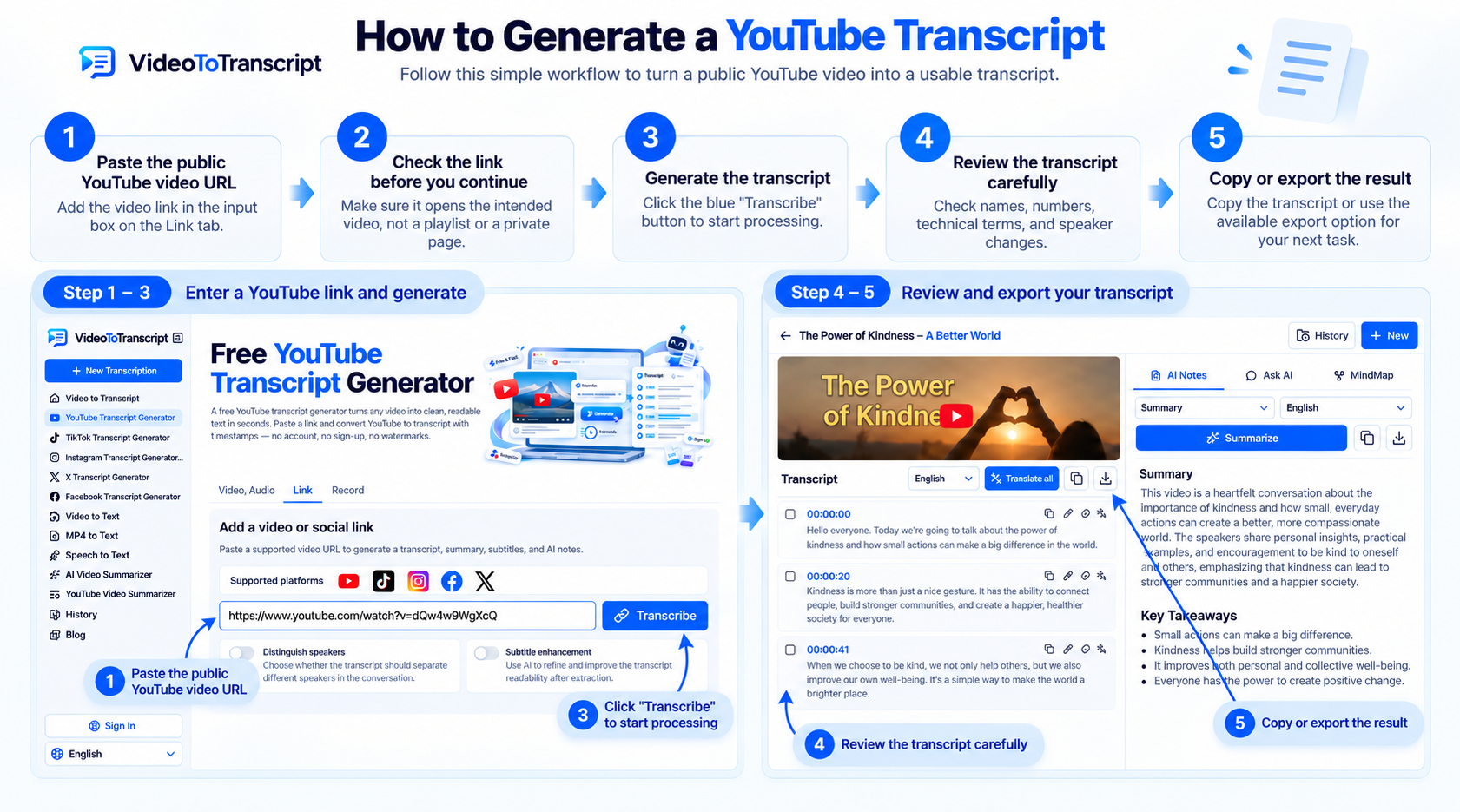
The usual workflow is:
- Paste the public video URL.
- Check that it points to the intended video rather than a playlist or private page.
- Generate the transcript.
- Review names, numbers, technical terms, and speaker changes.
- Copy the result or use the available export option for your next task.
If the URL workflow is not suitable for your source, a permitted local media file can be processed with a video to text converter. This is useful when you already have the video file or need to work from an approved copy.
A Practical Workflow for Long Transcripts
For a long interview or lecture, keep two versions of the transcript. The first is a raw copy with timestamps, which acts as a reference against the video. The second is a reading copy with unnecessary timestamps removed, paragraphs combined, and obvious formatting problems corrected.
For example, when saving a 45-minute interview for research, keep timestamps beside the passages you may cite and use the clean TXT copy for searching and annotation. Do not proofread every line in the same order that it was spoken. First search for proper names, numbers, product terms, and the sections you plan to quote. Then replay those passages in the original video and correct them before editing the rest. This catches the mistakes most likely to change the meaning while keeping the cleanup manageable.
The final format depends on the job:
| Goal | Recommended version |
|---|---|
| Search or personal notes | Clean plain text |
| Team editing | Document with headings and comments |
| Source-based research | Text with timestamps and video URL |
| Captions | Timestamped text reviewed against the audio |
| Quick understanding | Transcript followed by a summary |
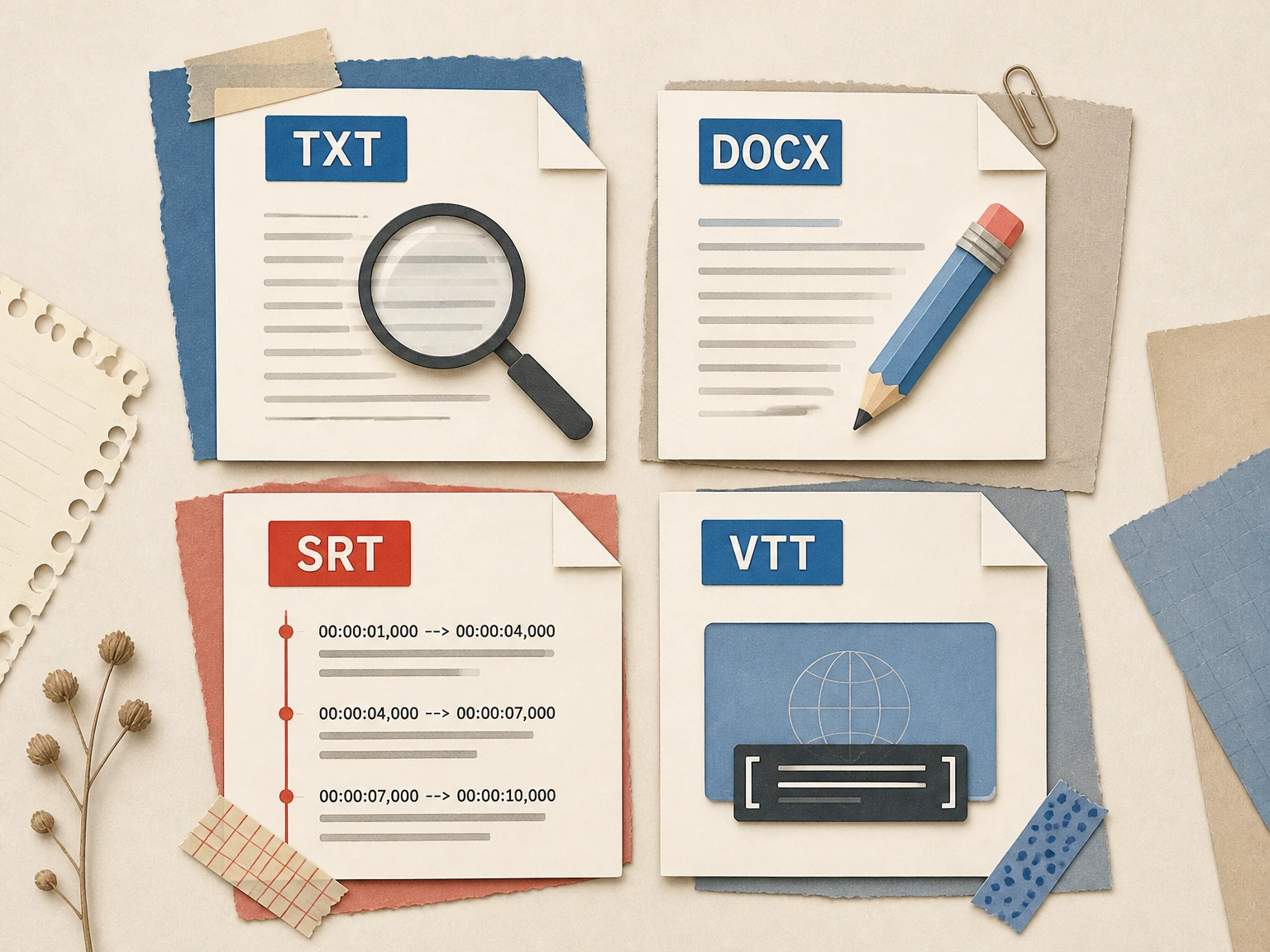
Choose the Right Export Format
The right format depends on how you will use the transcript:
| Format | Best for | Important detail |
|---|---|---|
| TXT | Searchable notes and AI prompts | Simple and widely compatible |
| DOCX or another document format | Editing and collaboration | Easier to add headings and comments |
| SRT | Timed subtitles | Requires accurate timestamps and sequence order |
| VTT | Web video captions | Requires valid caption timing and formatting |
Do not convert a plain transcript into SRT or VTT just by adding line numbers. Subtitle files need timing that matches the spoken audio, so review the timestamps before using them in a video editor or player.
Clean a Downloaded YouTube Transcript
Fix paragraph breaks
Caption segments are designed to fit on screen, not to read like an article. Combine short lines into natural paragraphs and start a new paragraph when the topic or speaker changes.
Check names and numbers
Automatic captions commonly struggle with people’s names, company names, dates, measurements, and specialist vocabulary. Search for these items explicitly instead of assuming a readable sentence is correct.
Add speaker labels
For interviews, panels, and conversations, labels such as “Host” and “Guest” make the saved transcript much easier to follow. If the speakers are not identified by the source, use neutral labels rather than guessing their names.
Keep important timestamps
Do not remove every timestamp if the transcript will support a quotation, fact check, subtitle workflow, or video chapter plan. Keeping timestamps for key passages gives you a reliable path back to the source.
Separate fact checking from editing
Formatting makes text easier to read, but it does not verify what was said. Check important claims against the original video and any relevant source material before publishing the transcript or using it as a formal record.
What If the YouTube Video Has No Transcript?
Some videos have no captions, incomplete captions, or captions that are too difficult to reuse. In that situation, check whether you have permission to download or process the media, then use an available audio or video file with an AI transcription workflow.
The result should still be treated as a first draft. Background music, accents, multiple speakers, poor microphones, and overlapping speech can all require additional review. If you only need the main ideas from a long recording, create a transcript first and then use a video summarizer after checking the source text.
Frequently Asked Questions
Can I download a YouTube transcript for free?
You can usually copy a transcript for free when YouTube makes one available. Paste it into a text editor and save it as a .txt file, or move it into a document for further formatting.
Where is the YouTube transcript button?
Open the video description or additional options and look for the transcript panel. The location and wording can change across devices and interface versions, so the option may not appear in exactly the same place for every viewer.
How do I download a YouTube transcript without timestamps?
Copy the transcript into a text editor, remove the timestamp lines, and combine the remaining caption fragments into paragraphs. Keep an untouched timestamped copy if you may need to verify quotes later.
Can I download a transcript if the video has no captions?
Not directly from YouTube’s transcript panel. You need an approved media source and a transcription workflow that can analyze its audio. The resulting text should be reviewed carefully, especially for names, numbers, and overlapping speech.
What file format should I use for a YouTube transcript?
Use TXT for simple searchable notes, a document format for editing and collaboration, and SRT or VTT when the text needs to stay synchronized with the video. The best choice depends on what you plan to do next.
Final Takeaway
For a short excerpt, copying the transcript from YouTube is usually enough. For a reusable document, save a raw timestamped version, create a cleaned reading copy, and verify the passages that matter. When the built-in transcript is missing or difficult to reuse, a YouTube transcription workflow can provide a more practical starting point—provided you review the result and have permission to use the source.