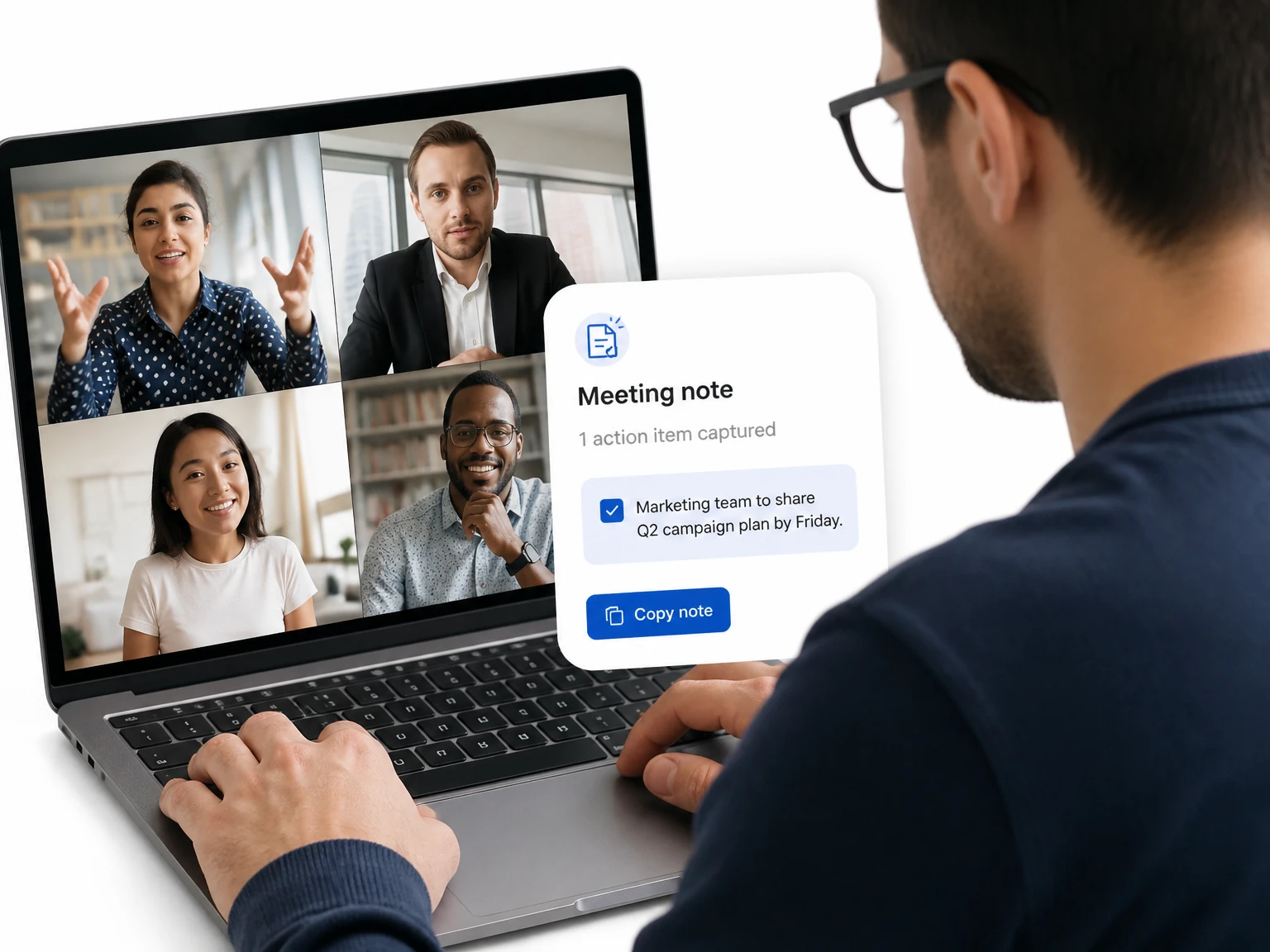
Turn a recorded discussion into searchable notes, decisions, and action items without relying on memory.

Turn spoken recordings into useful working text. Upload audio or a recording, review the transcript, and reuse important lines for notes, captions, research, and follow-up.
200+ languages
200+ languages
Video transcription support for global video content
Timestamped output
Timestamped output
Review exact moments and prepare captions
Speaker Recognition
Speaker Recognition
Identify and label different speakers in your transcript
Private upload
Private upload
Review sensitive media before exporting or publishing
Supported formats: MP4, MOV, AVI, MKV
Choose whether the transcript should separate different speakers in the conversation.
Use AI to refine and improve the transcript readability after extraction.
Speech to text is the process of turning spoken audio into written words. Upload a recording and the AI produces editable text that can be searched, checked, translated, and reused. It gives meetings, lessons, interviews, and voice notes a practical written record. For video files where the visual source also matters, use the video to text converter, or start from the Video to Transcript tool if you are still choosing a workflow.
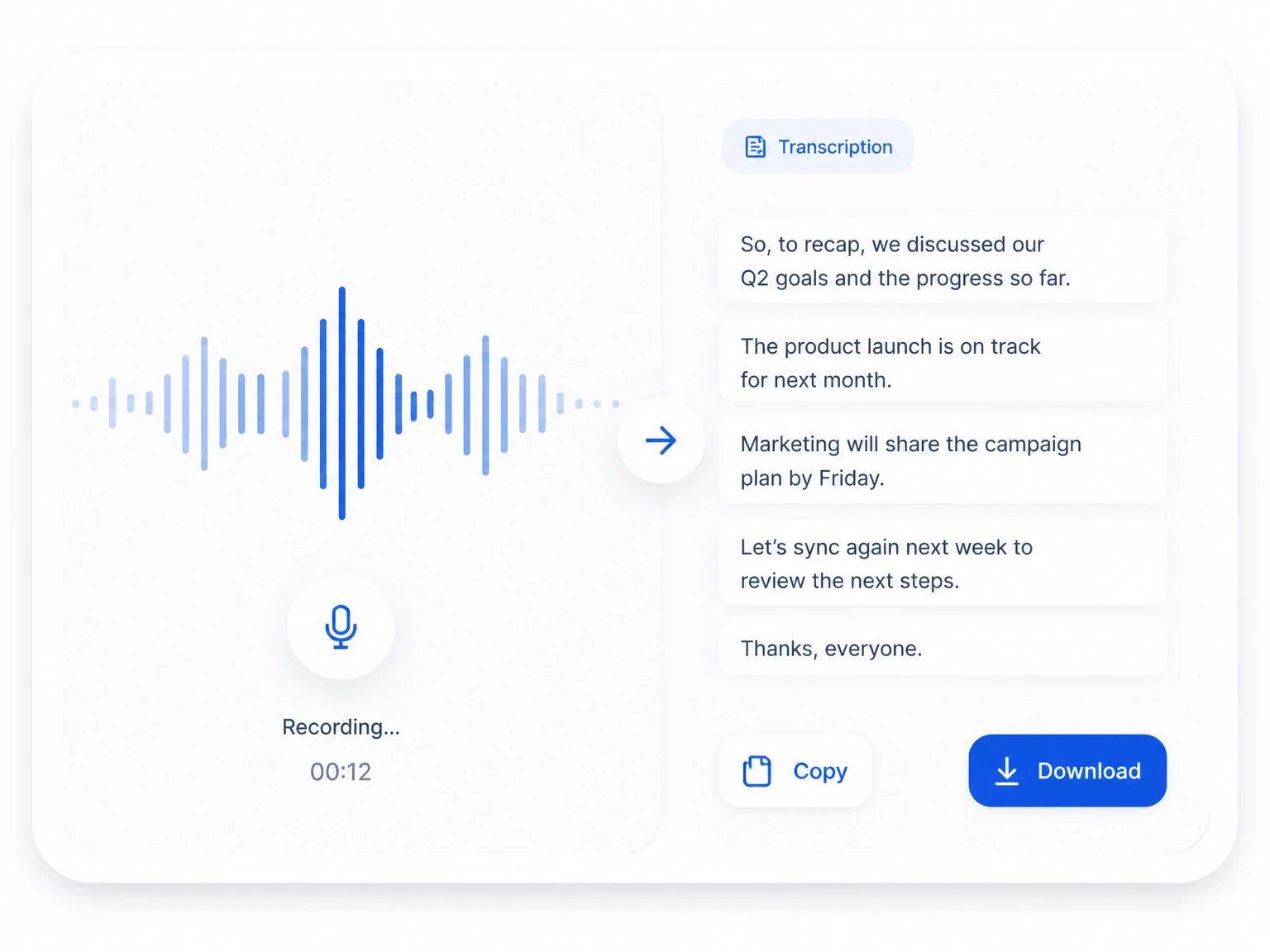
A useful speech transcription workflow handles the source you already have and returns text that fits the next task.
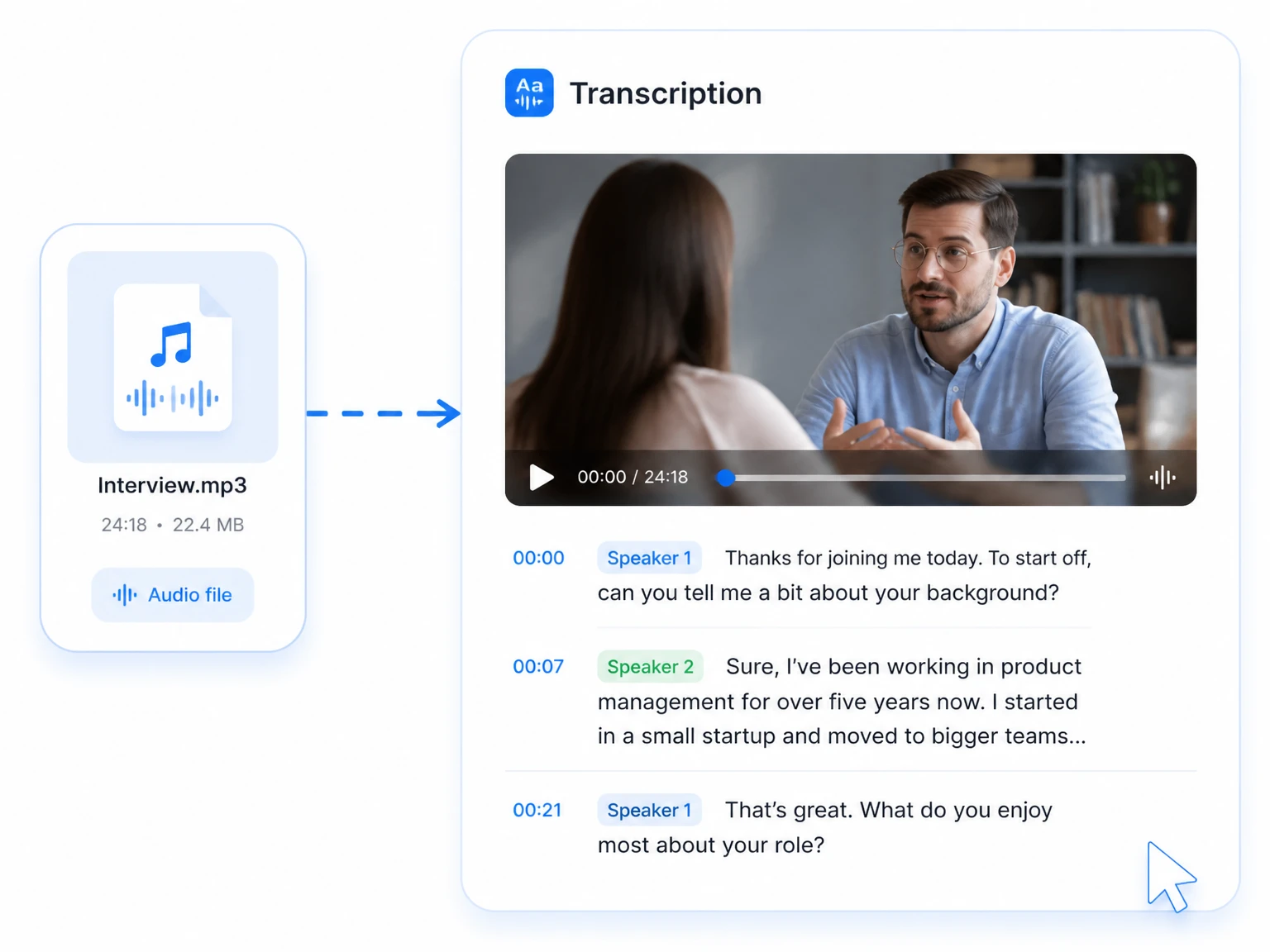
Start with a meeting recording, interview, lecture, voice memo, or uploaded file that contains speech. The workflow reads the spoken track instead of requiring you to re-record it.
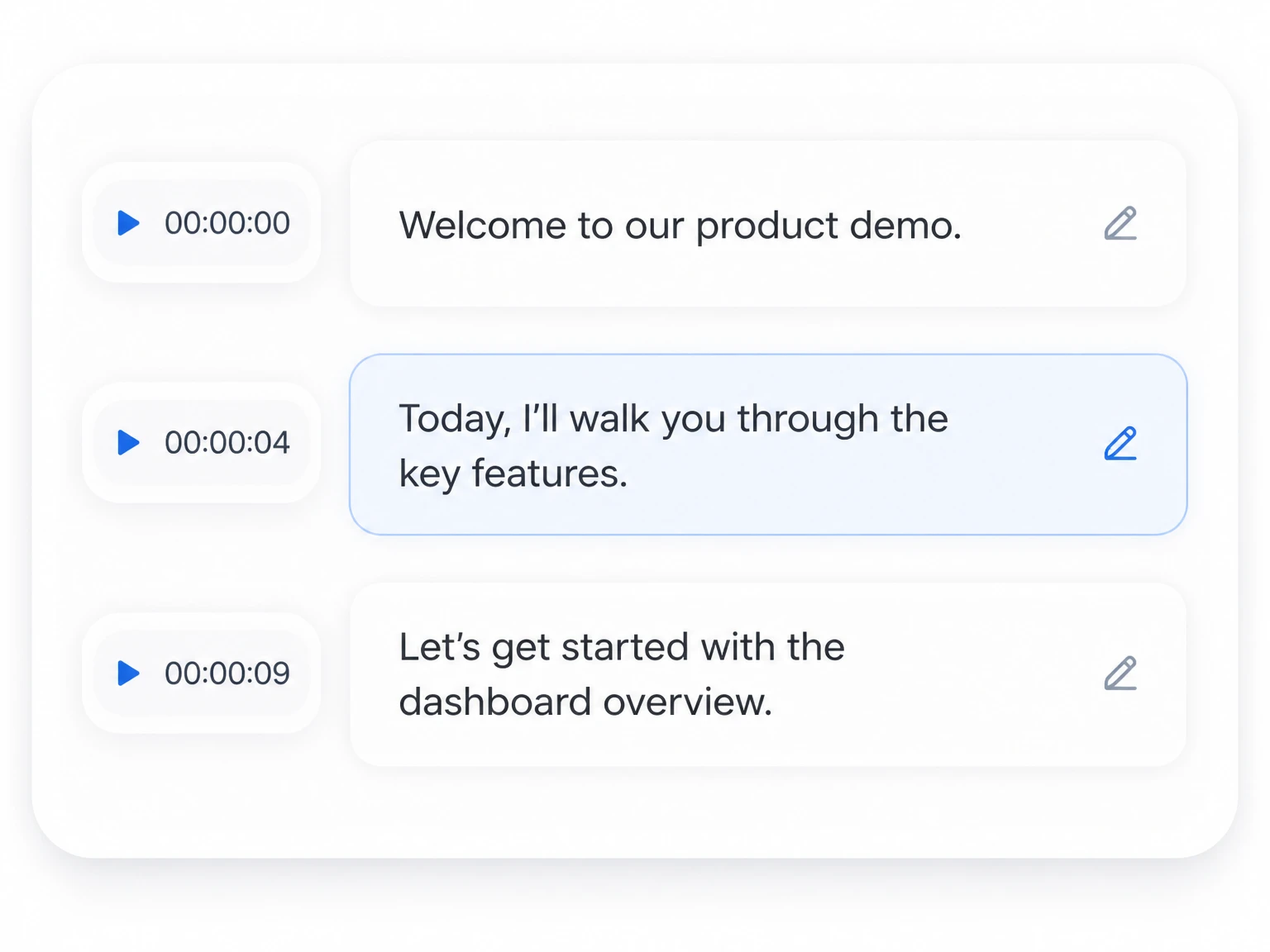
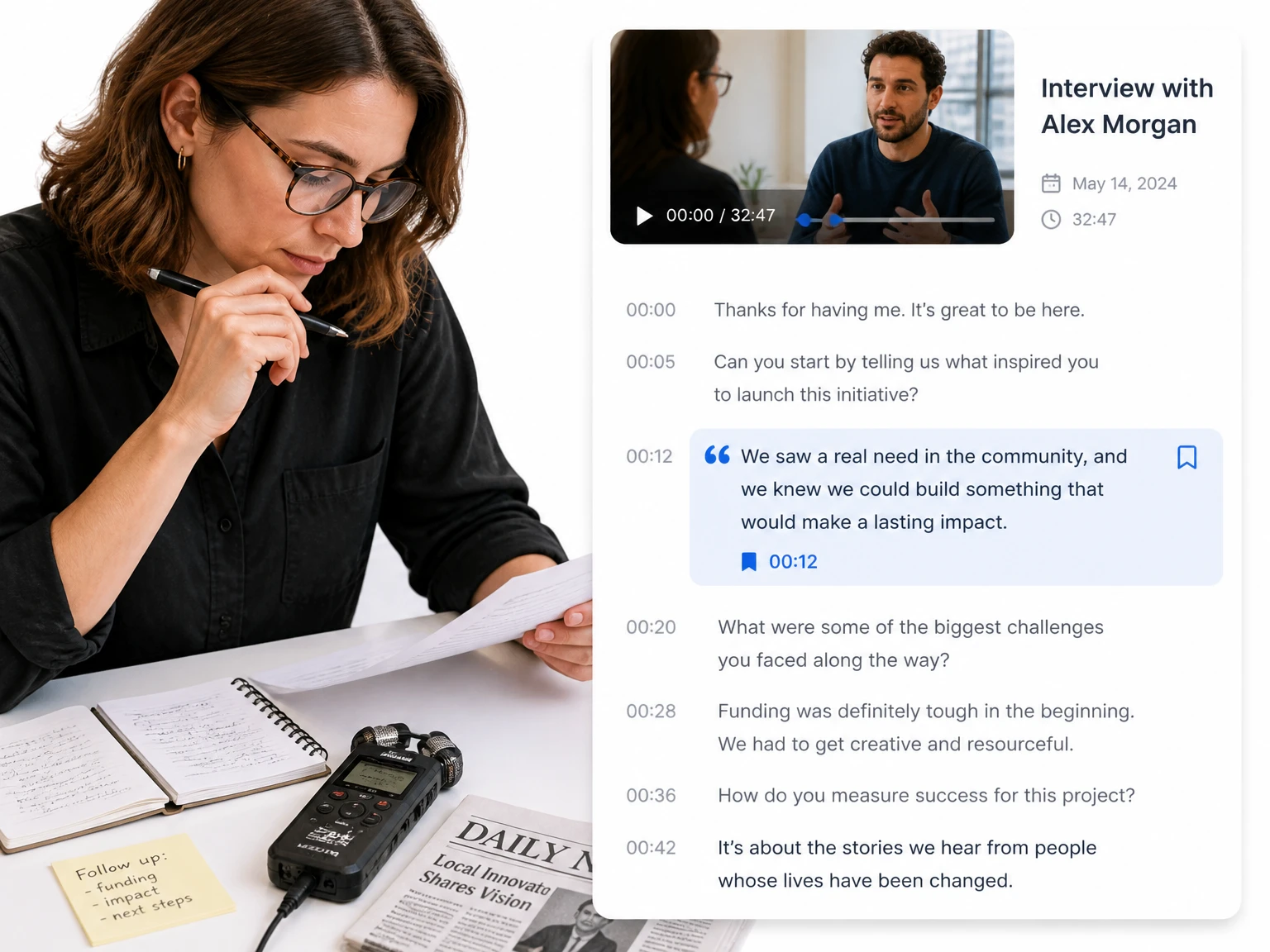
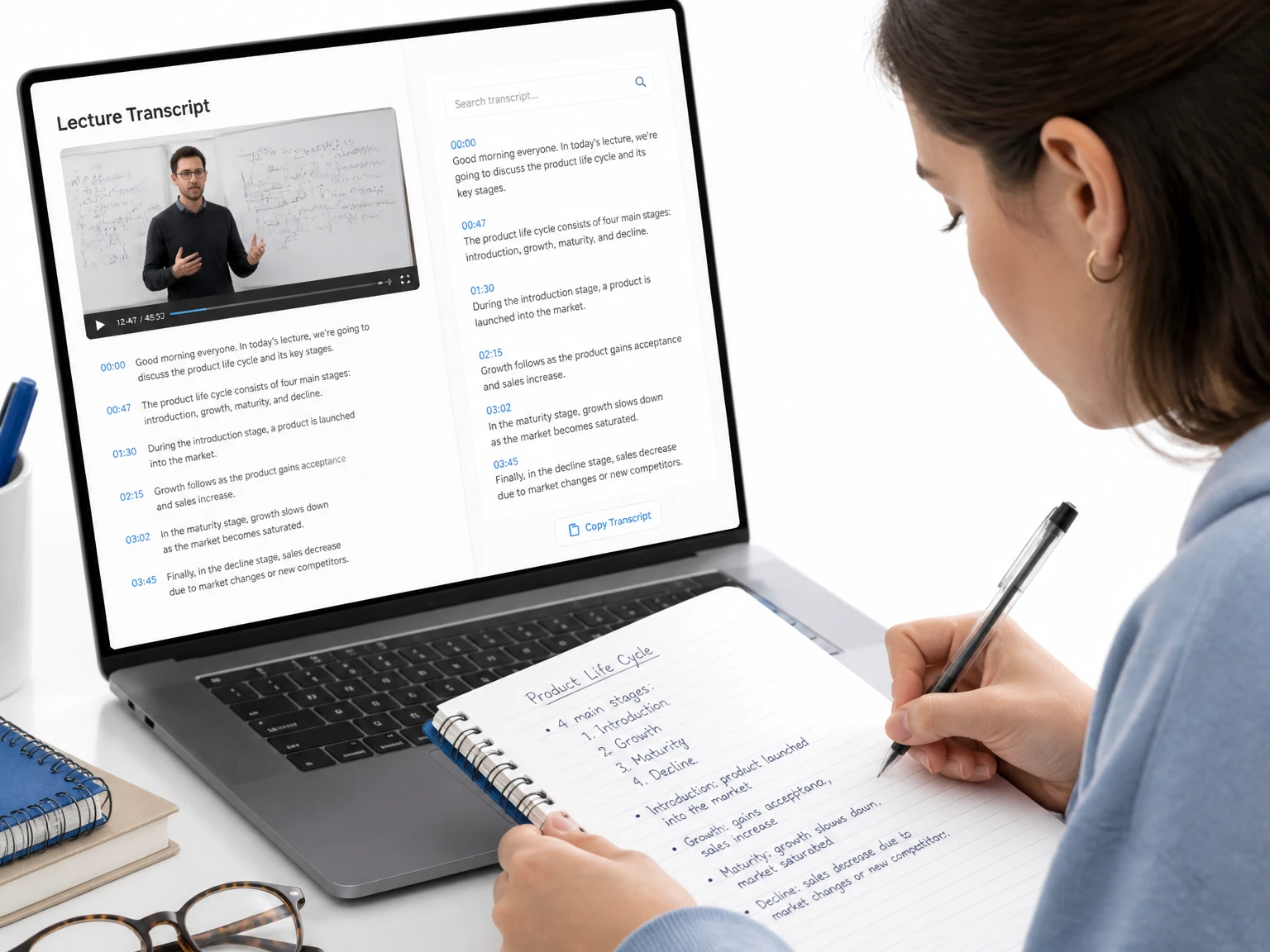
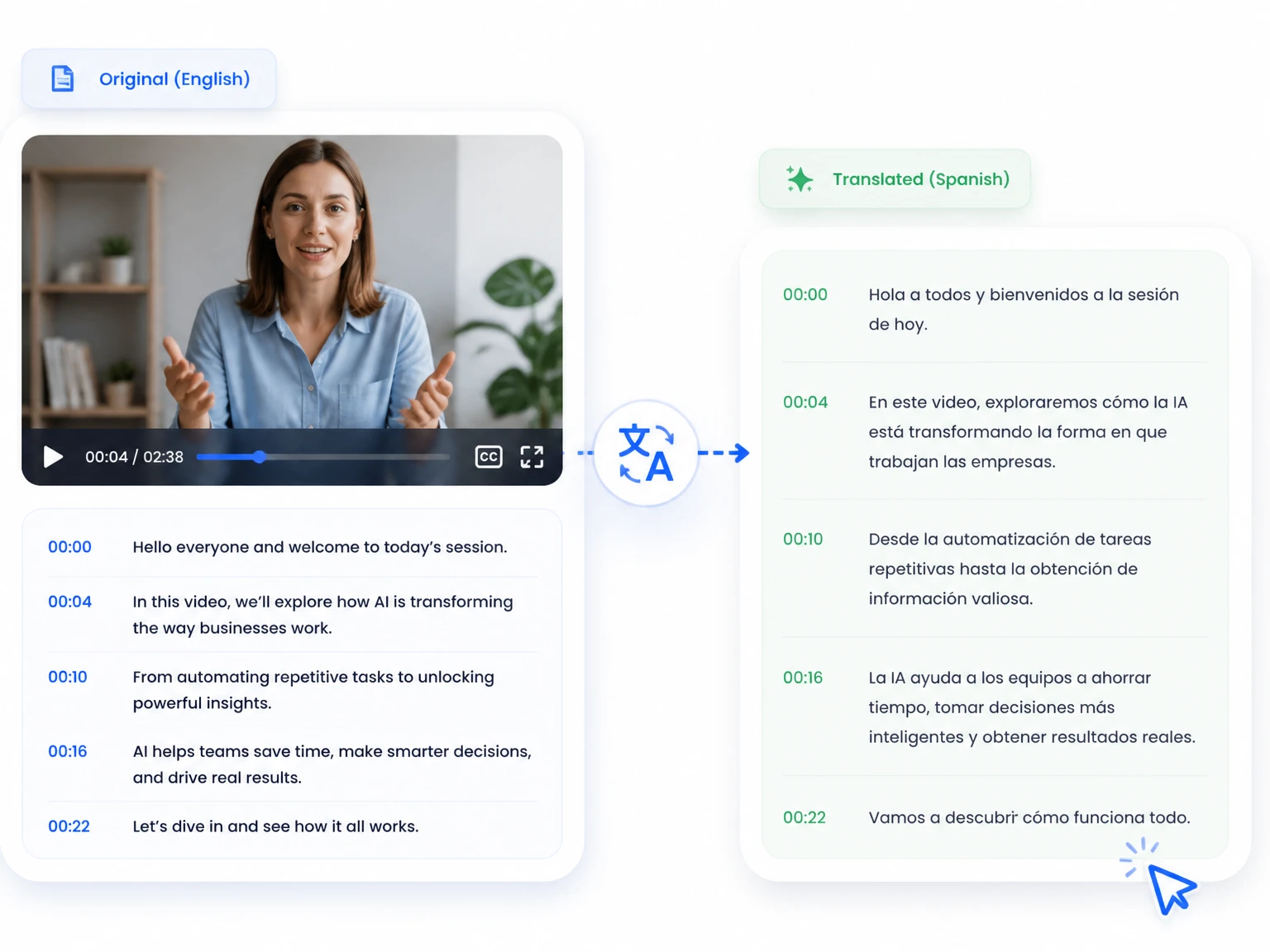
Each passage can stay connected to its moment in the source. Timestamps make it easier to verify a quote, revisit a decision, or prepare timed captions.
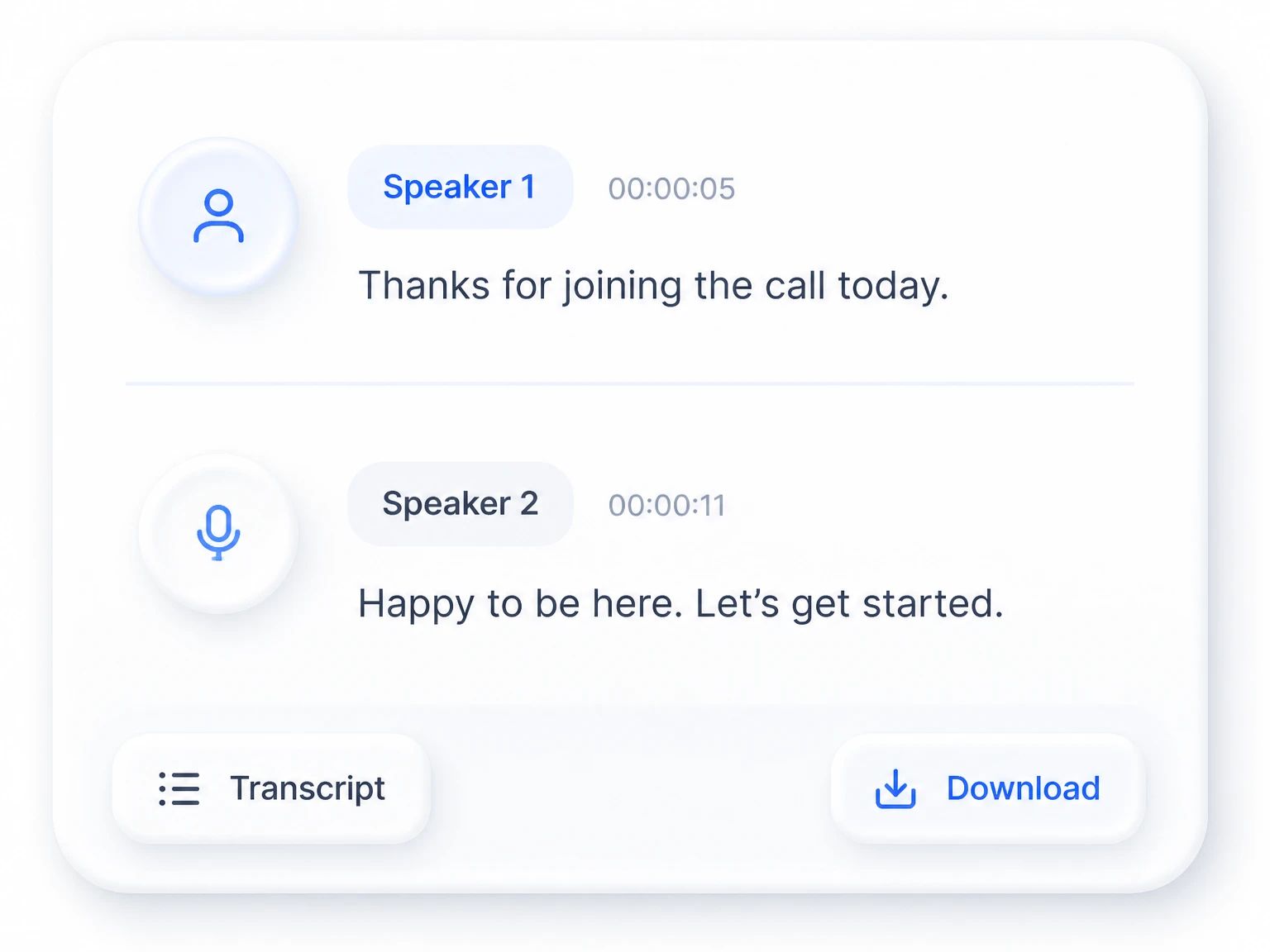
For conversations with multiple voices, speaker labels organize who said what. Review names and turn labels into the convention your team uses.
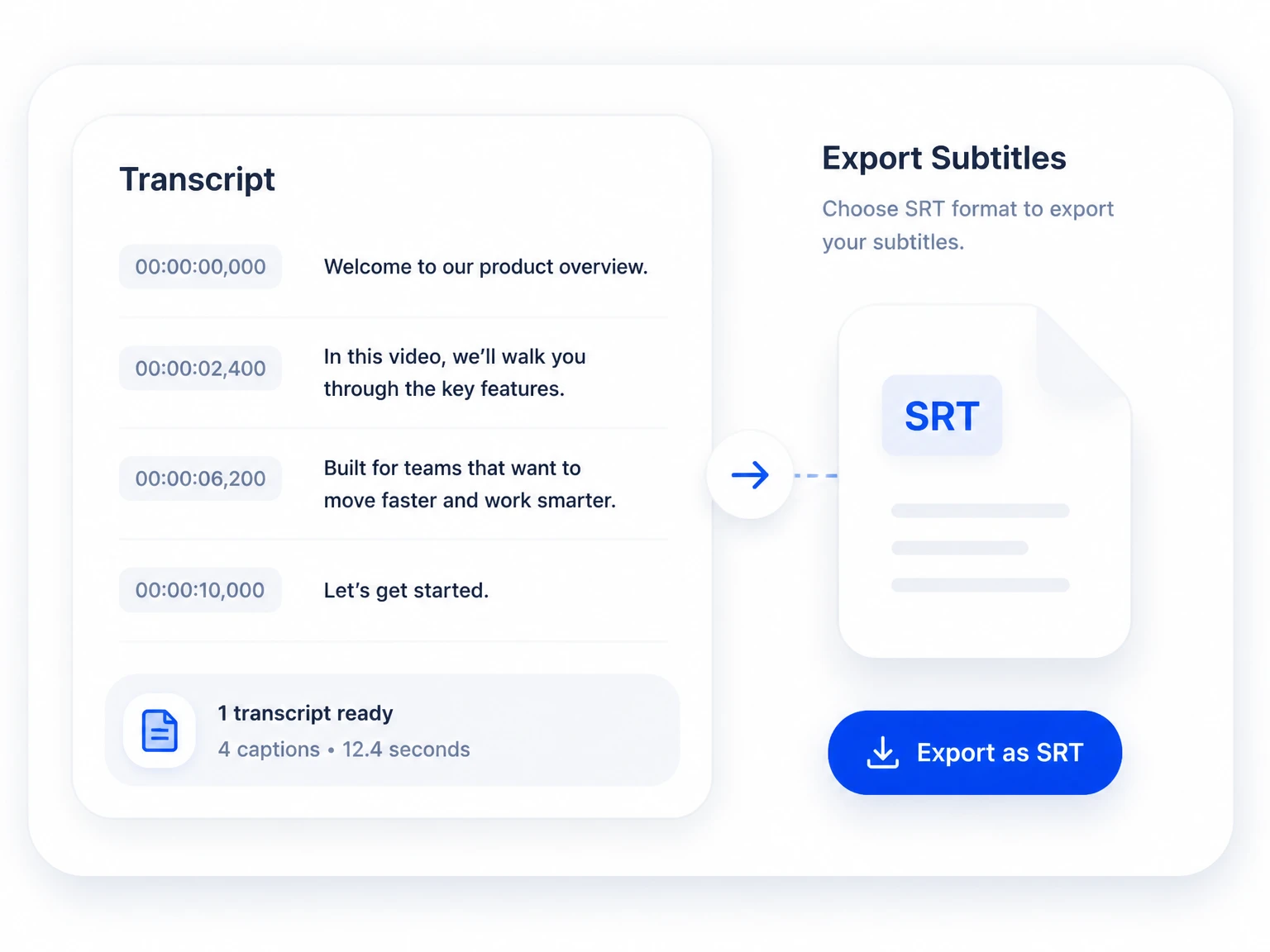
Copy the result for notes or export an available TXT, DOCX, SRT, or VTT file. The same transcript can support documents, captions, and downstream editing.
Three practical steps take a recording from upload to a usable transcript.
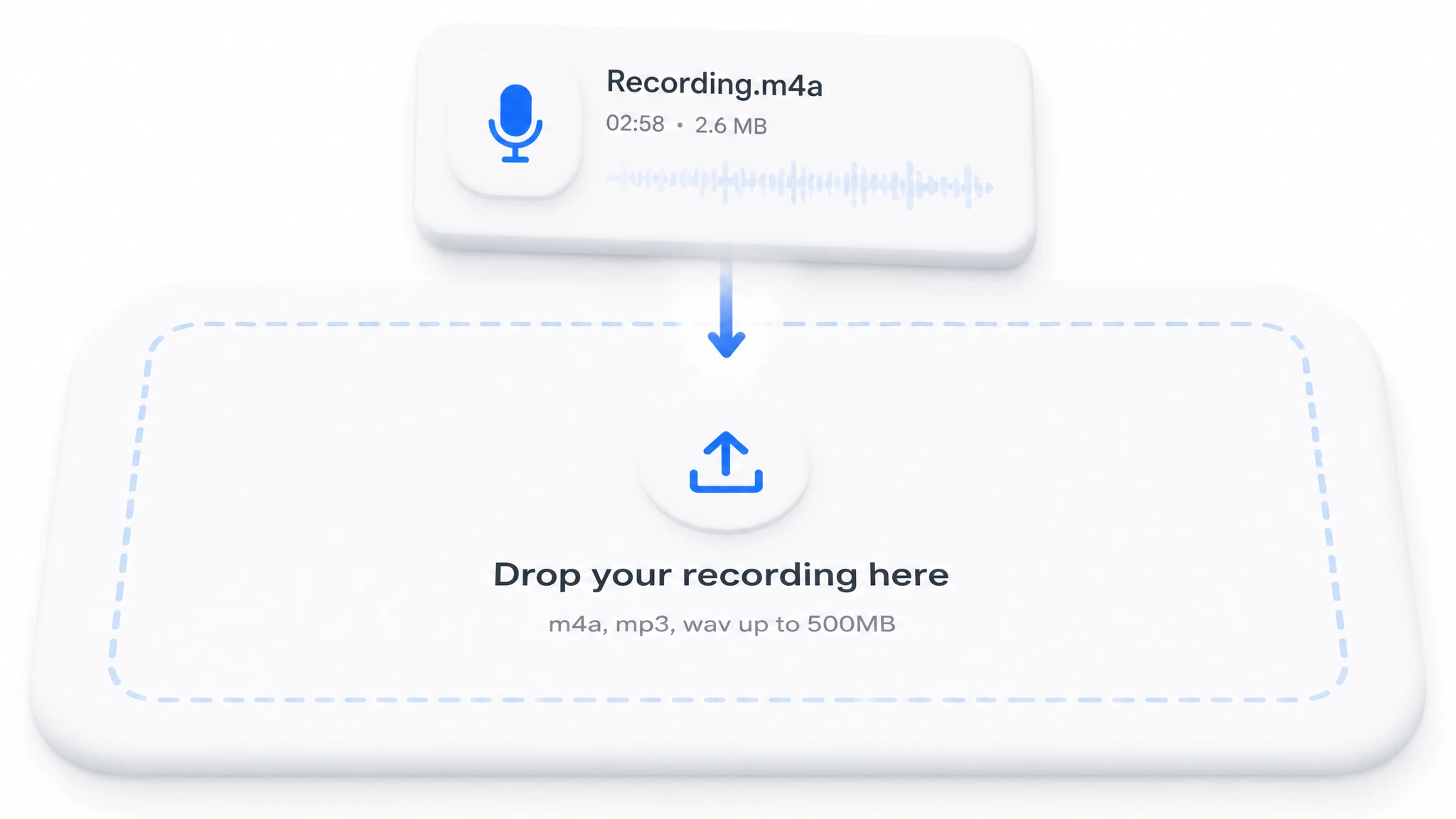
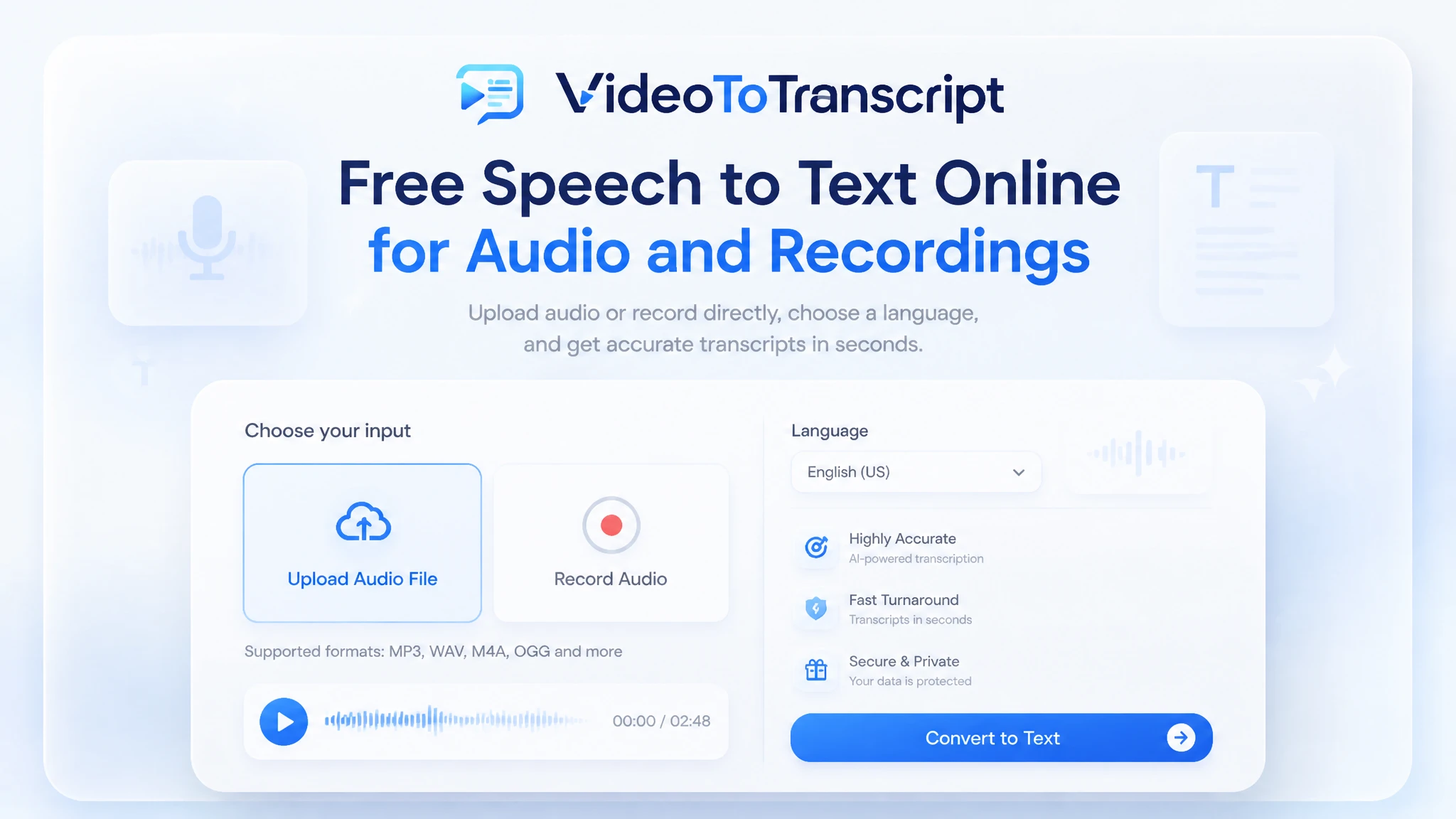
Choose an audio file or recording from your device and select the spoken language when prompted.
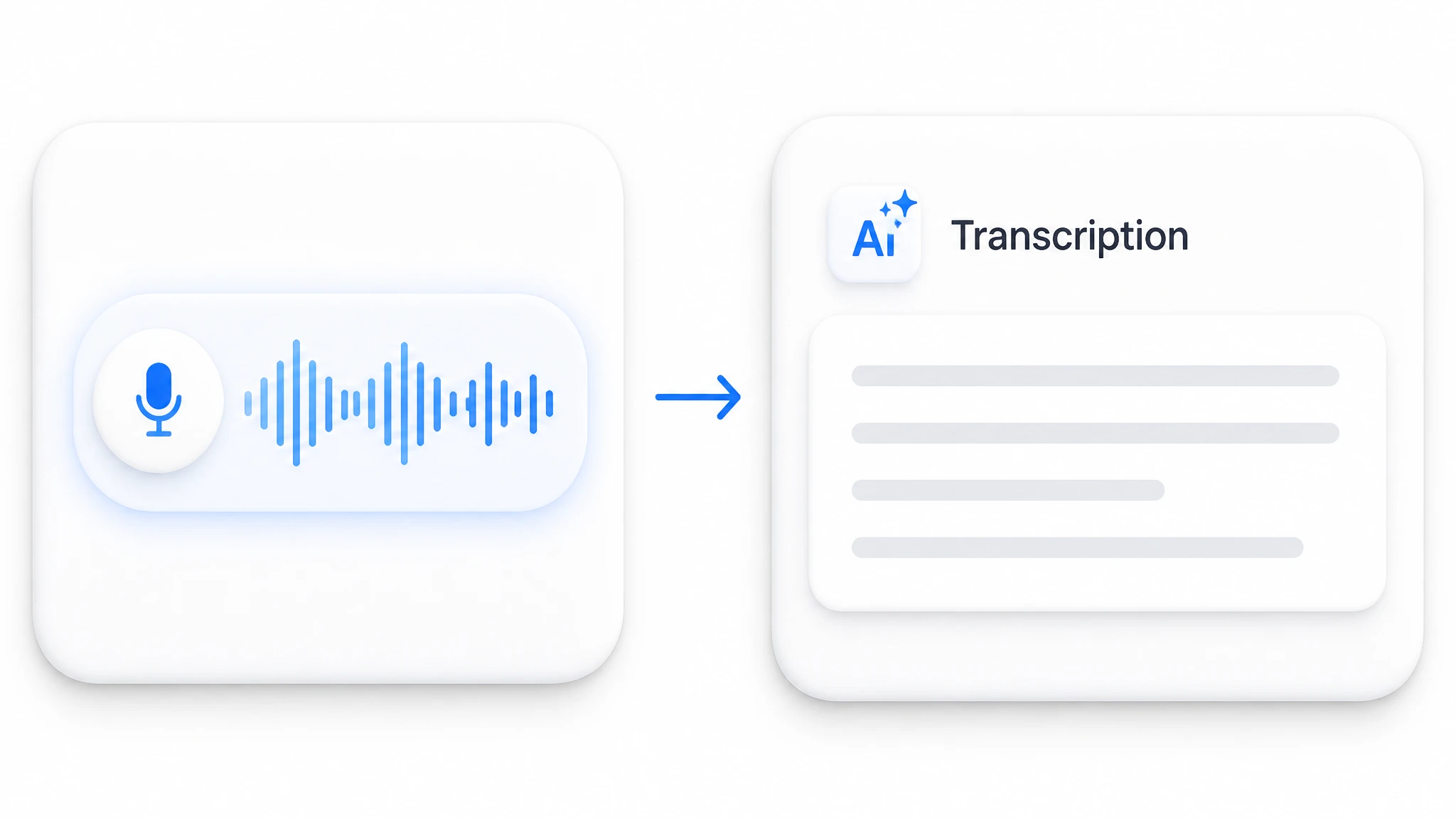
The service analyzes the audio, writes the words in sequence, and adds timestamps or speaker labels when available.
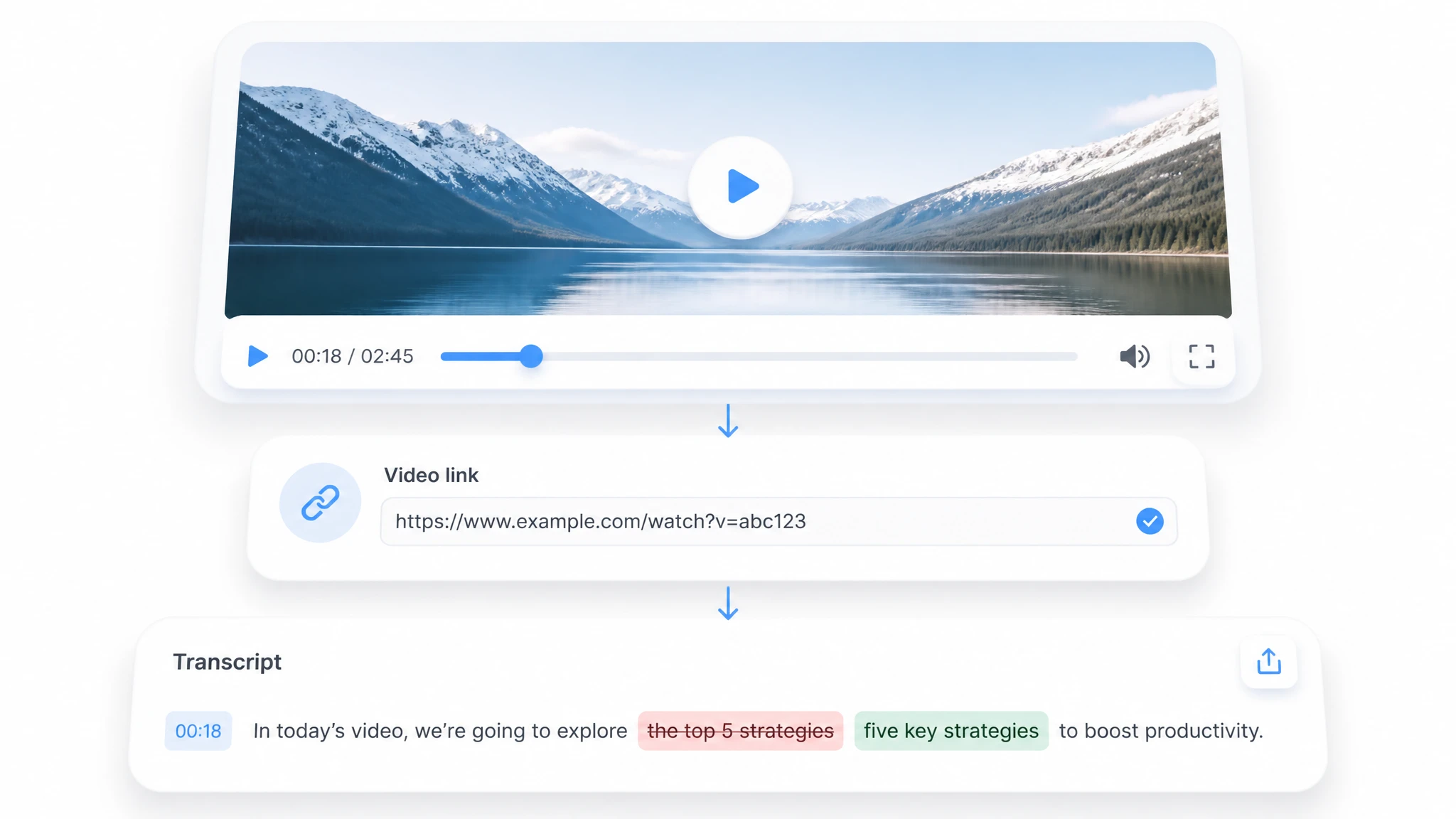
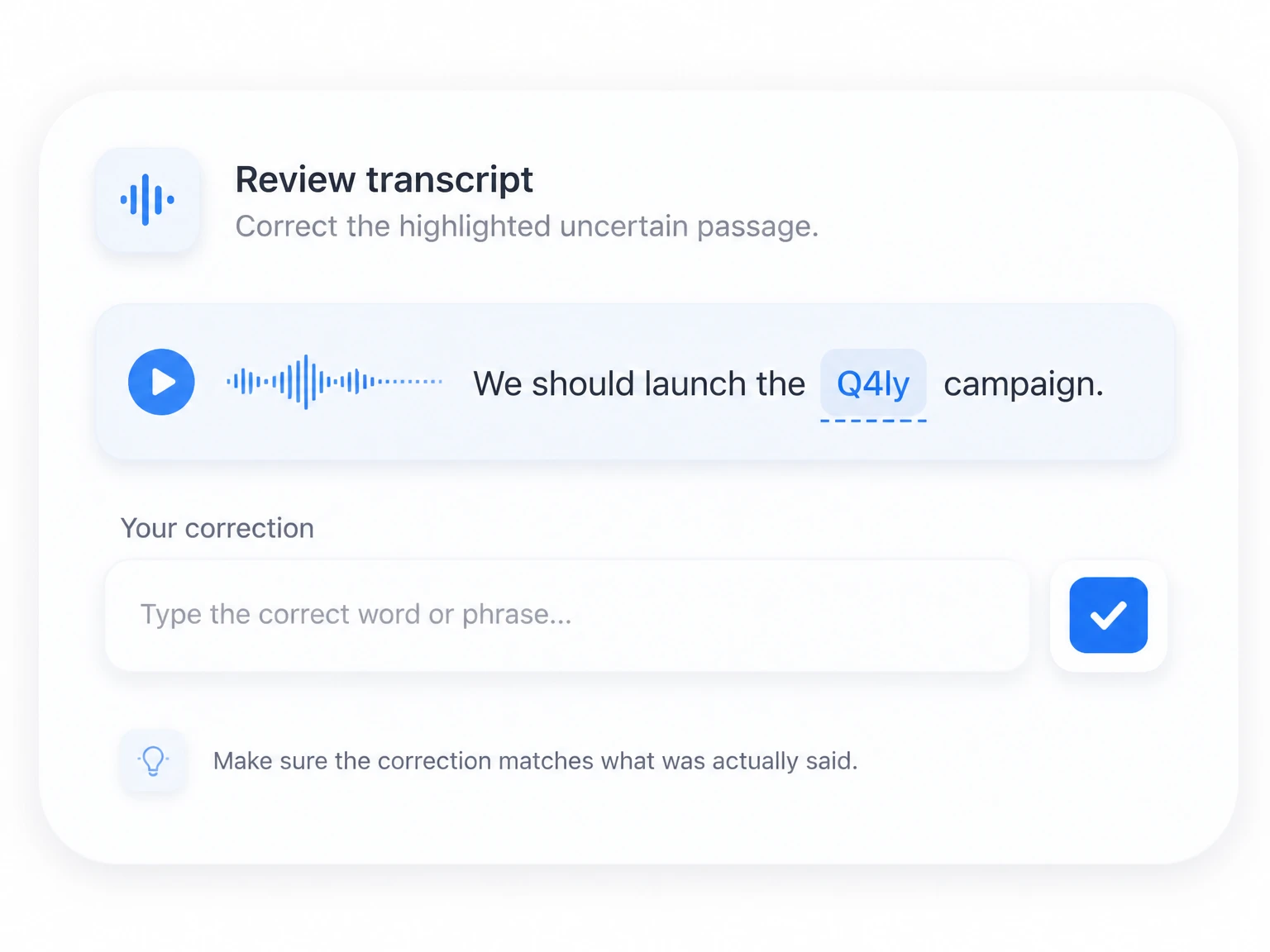
Check names, numbers, and unclear passages, then copy, translate, summarize, or export the finished text.
Convert speech into the specific document or asset your next task requires.
Turn a recorded discussion into searchable notes, decisions, and action items without relying on memory.
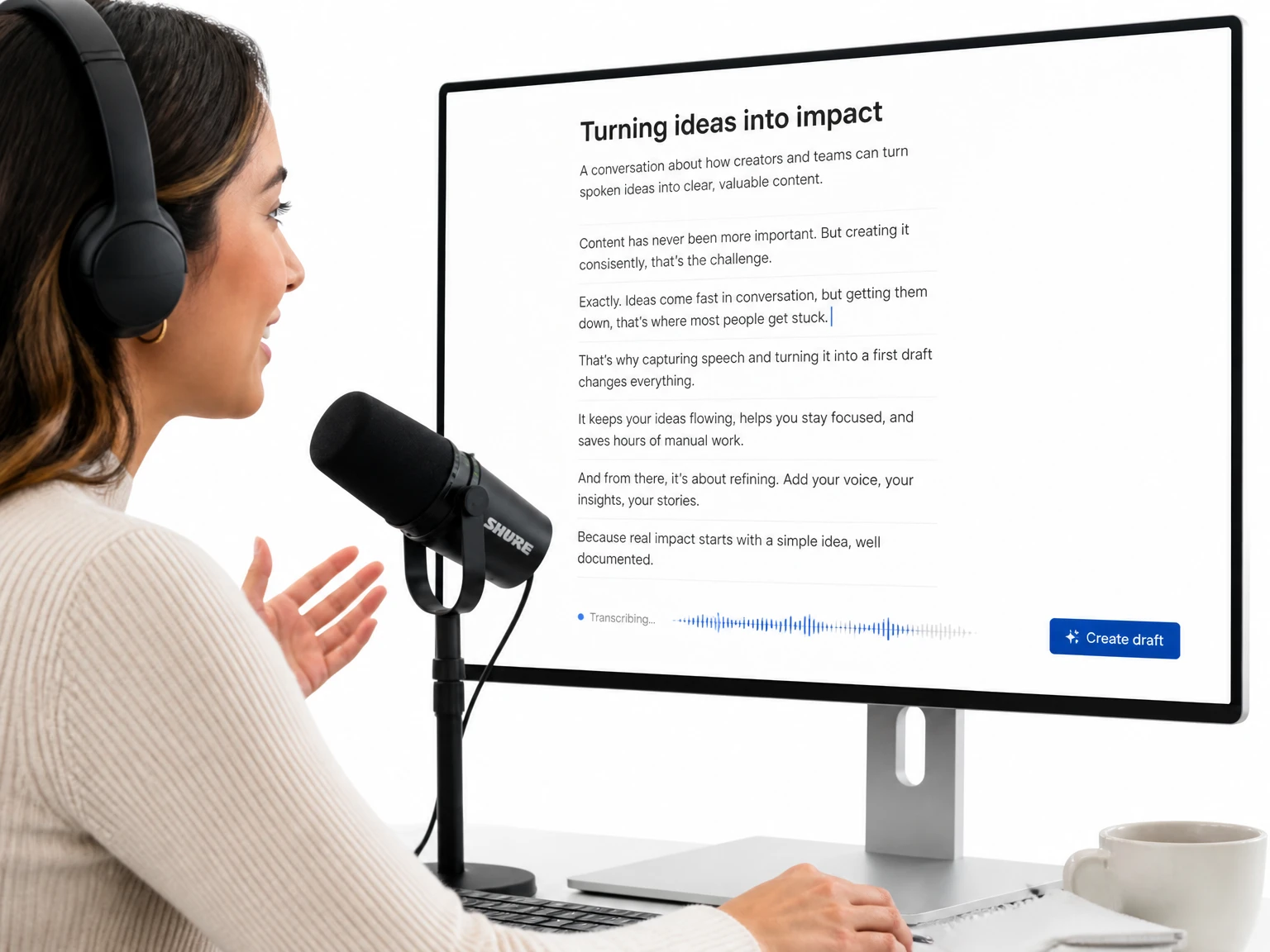
The value is not only the first transcript; it is what becomes possible after spoken content is written down.
Locate a phrase or topic by reading the transcript rather than dragging through a long timeline.
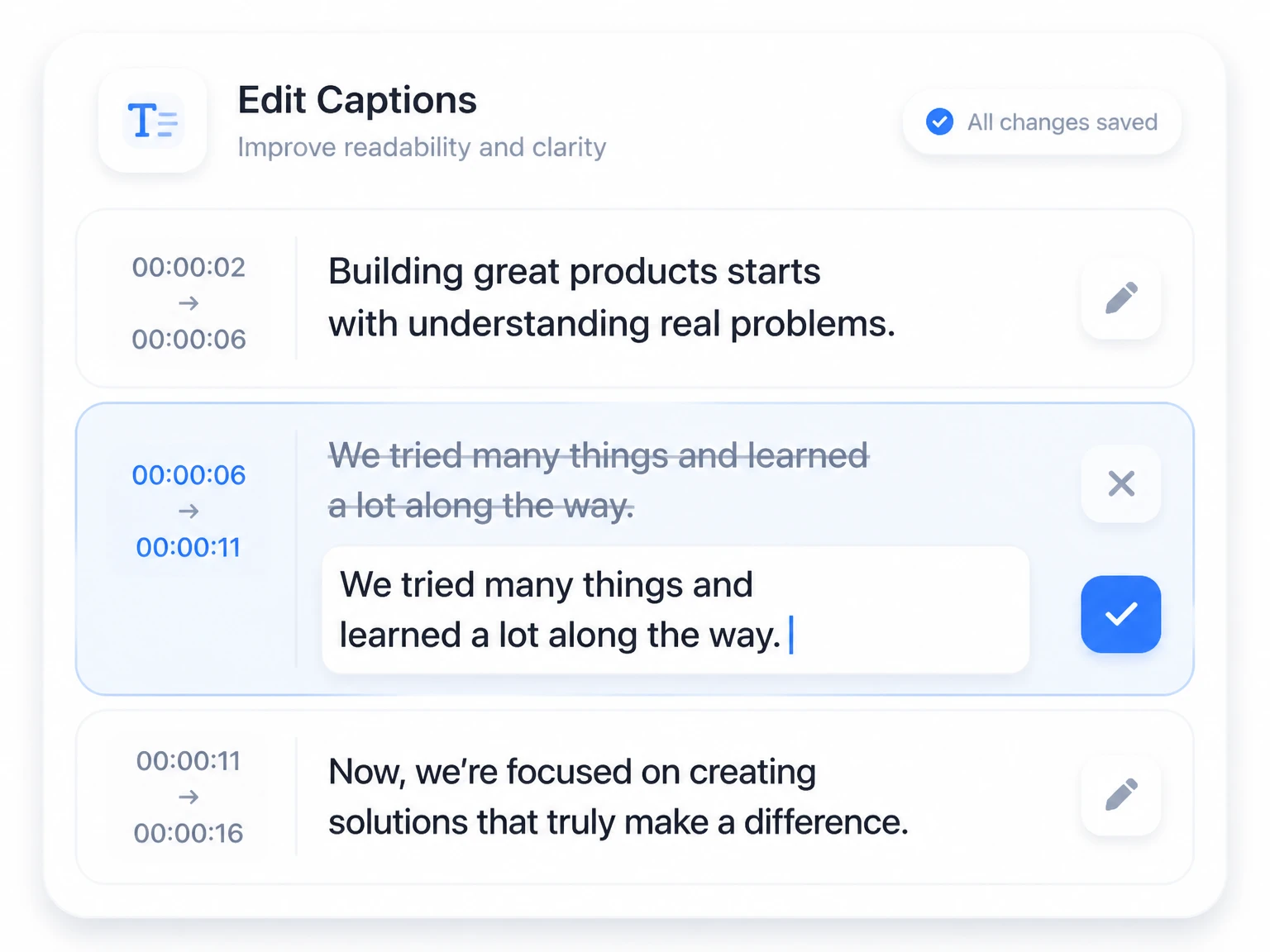
Correct wording and shape the text before sending it into notes, documents, or captions.
Use timestamps to check a claim or quote against the original recording.
Translate written speech for teammates, learners, or audiences in other regions.
Create several useful outputs from a single source instead of repeating the listening work.
Move from recording to a shareable text asset without switching between transcription tools.
AI speech transcription is strongest when the recording is clear and speakers do not talk over one another. Before publishing or quoting, review proper names, figures, specialist vocabulary, and sections covered by music or background noise. Use timestamps to compare uncertain lines with the original audio, and treat the transcript as an editable first draft when the recording conditions are difficult.
I use speech to text mostly for webinars, interviews, and customer videos that I need to turn into written content. Uploading a video and getting a structured transcript saves me from taking notes manually. The speaker labels are especially helpful when there are several people talking, and I usually generate a summary before deciding which parts are worth repurposing.
Upload an audio or video recording and turn the words inside it into text you can review and use.
Start Speech to TextThe page is designed for a free starting experience. Any file, duration, or account limits shown in the product interface take priority.
Yes. A recording that contains spoken audio can be processed as a speech transcription source, alongside supported audio files.
Speaker recognition can separate voices when the recording is clear enough. Review labels before sharing a formal record.
Results depend on language, pronunciation, microphone quality, overlapping speech, and background noise. Always check names, numbers, and important quotations.
Yes. Review and correct the transcript in the available editor before copying or exporting it.
Language availability is shown in the transcription interface and may vary by model or recording. Select the spoken language that best matches your file.
Yes. This tool can process supported public or uploaded videos with English speech. Review names and phrases before using the transcript.
Yes. After reviewing the result, you can copy the text or export an available subtitle format such as SRT or VTT.